The product
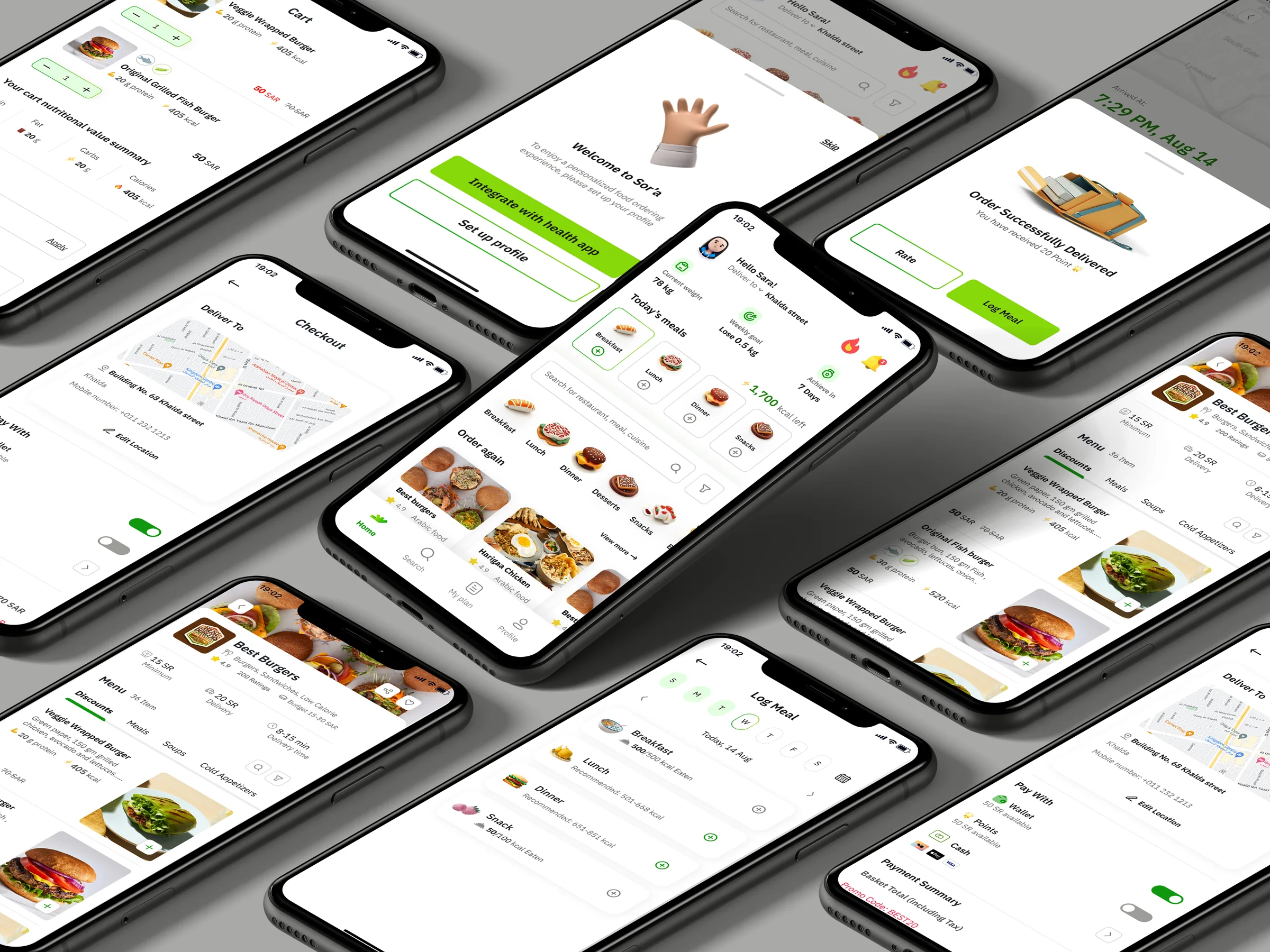
What a user actually gets: the finished customer app, from set-up to ordering, live tracking and meal logging, and the restaurant web dashboard that receives the orders.
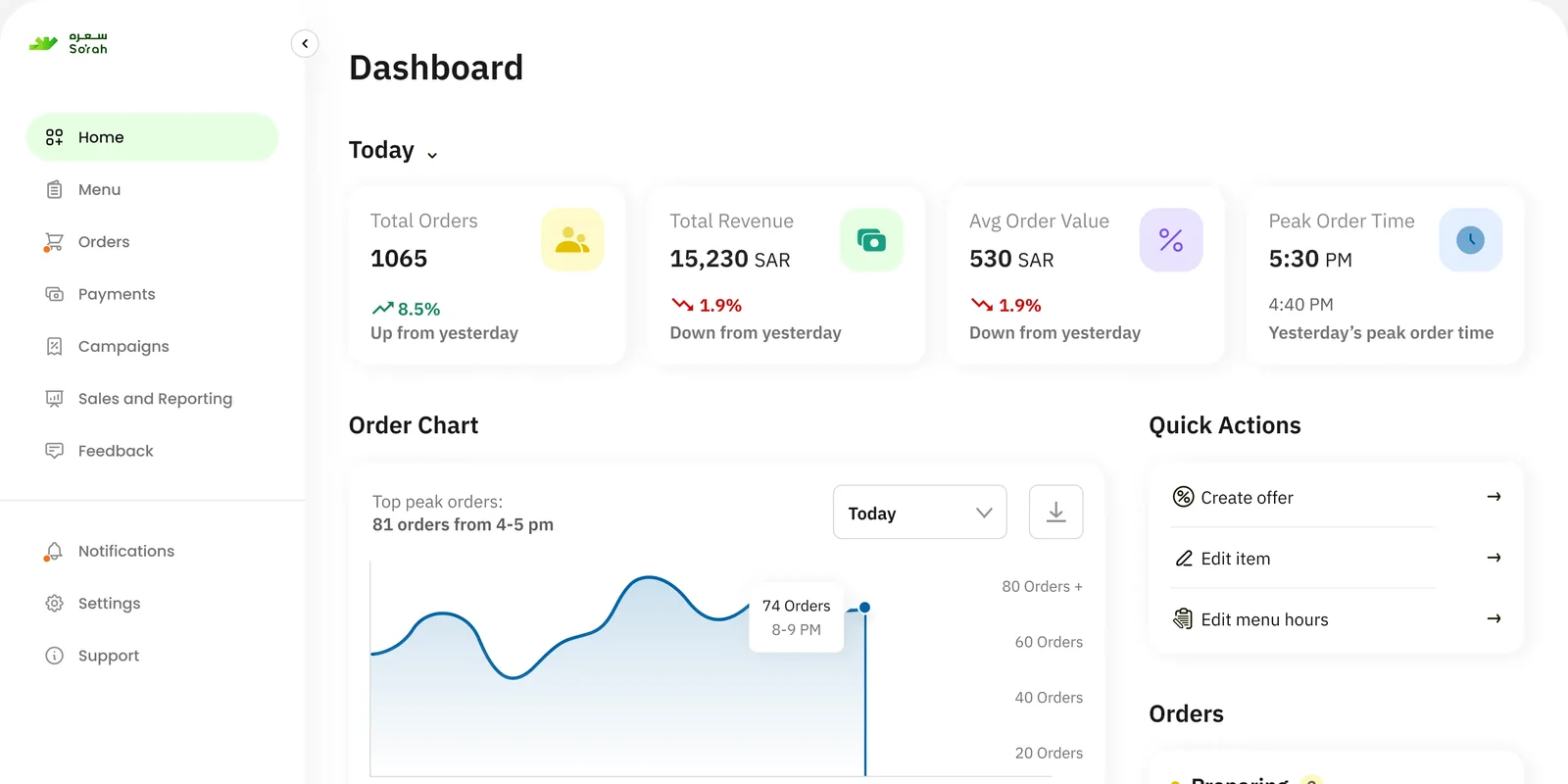
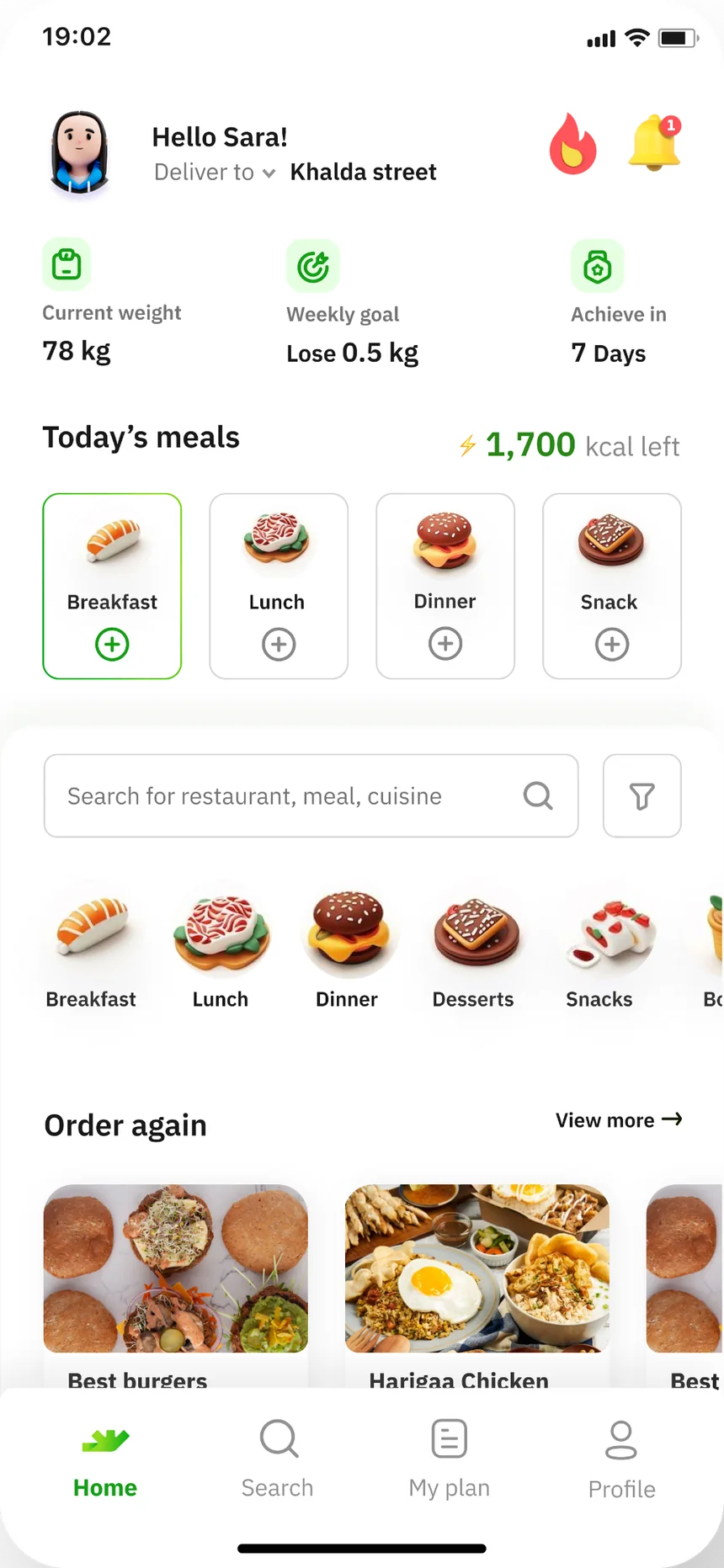
This is what we got 😍🔥
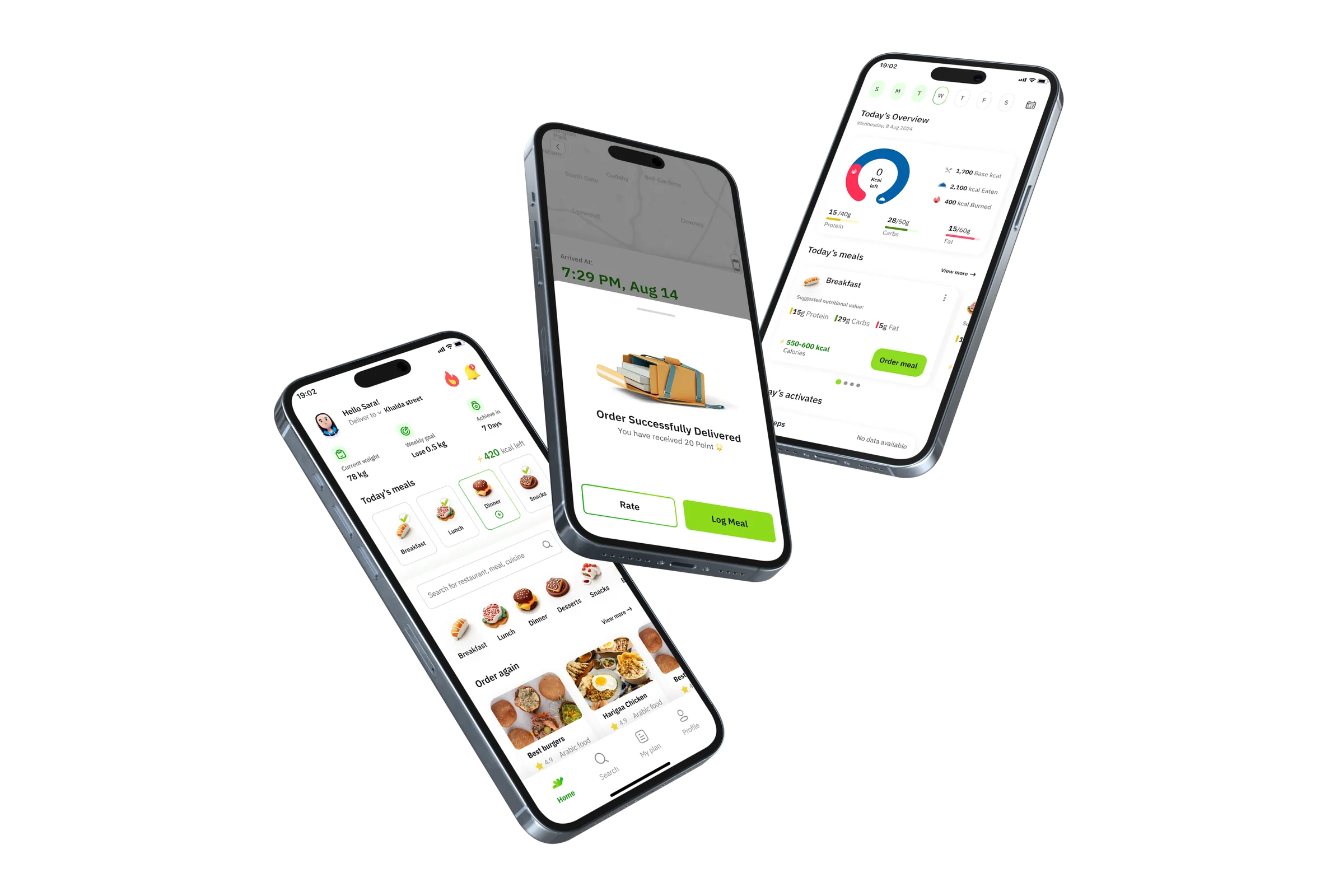
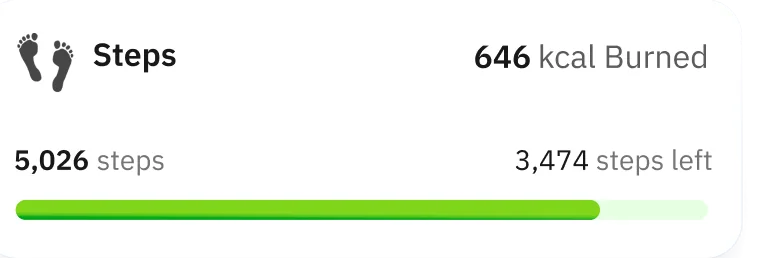
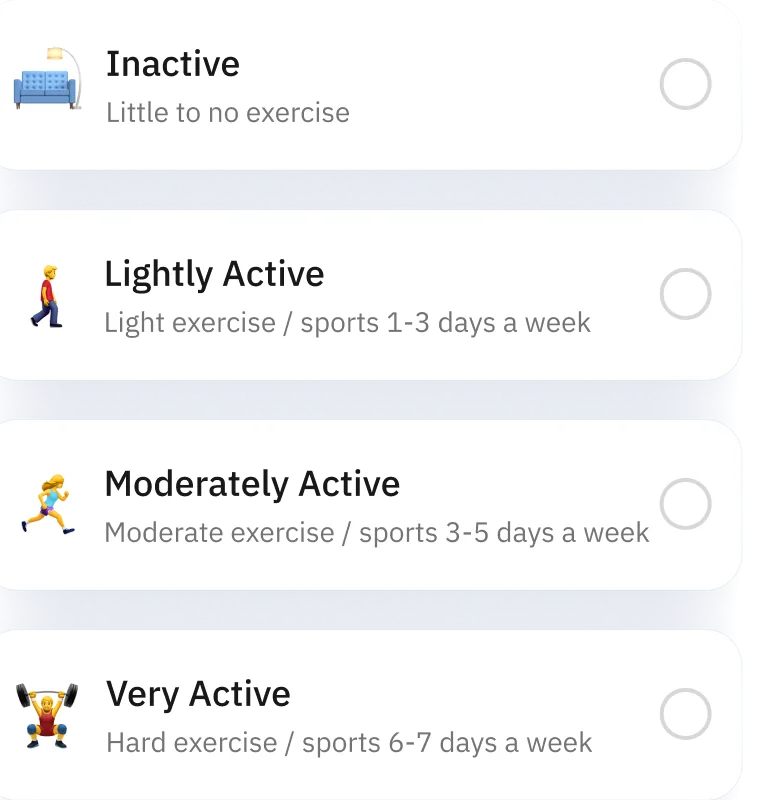
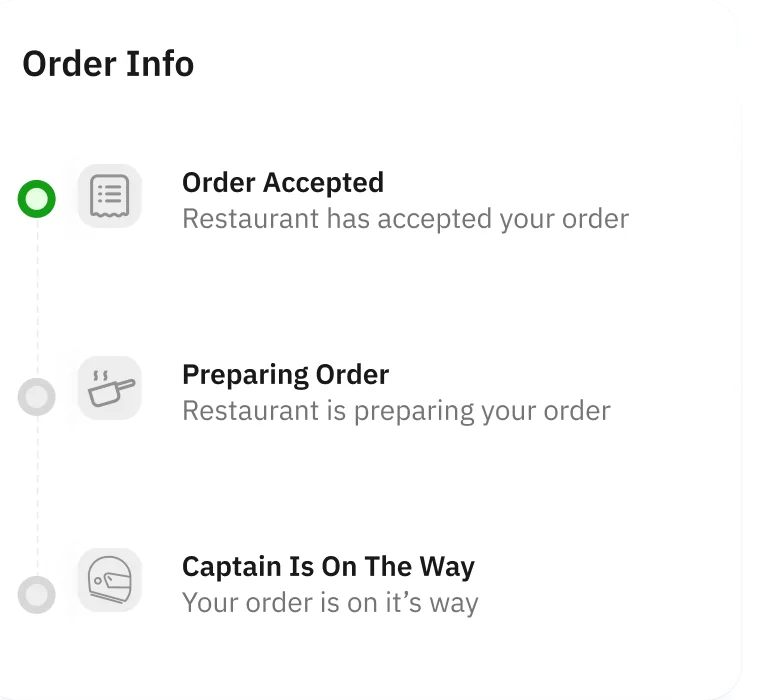
The final high-fidelity UI after the iterations: the components float in around the home, order-delivered and today’s-overview screens.
Personalized Homepage
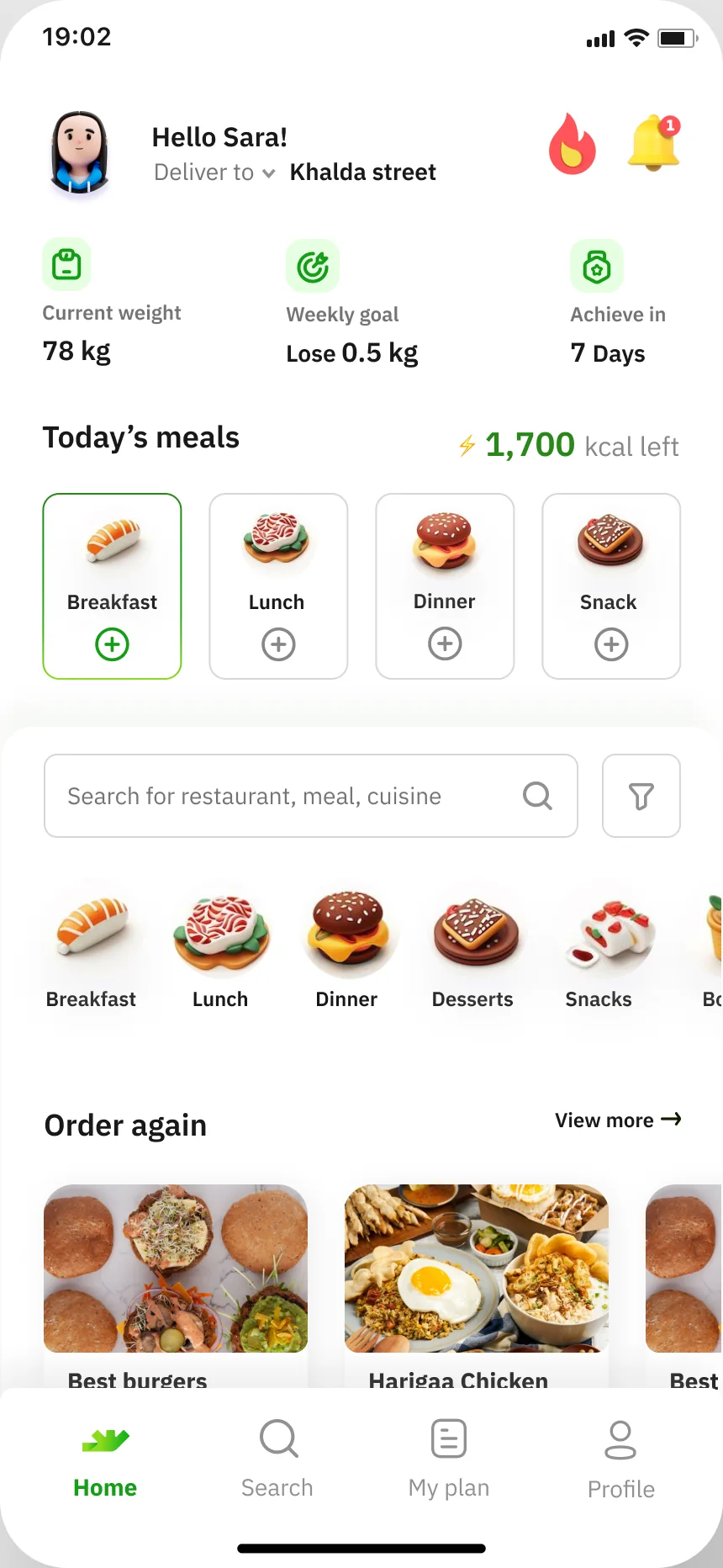
In the app’s home screen, users see a customized tracker card, showing their current weight, weekly goal, and a 7-day countdown, not too short that users feel discouraged, and not too long that they lose focus. This motivates users to stay on track as the day they measure progress approaches, helping them self-correct along the way.
What users said
Select a tag or a quote to light up the part of the screen it is about.
Dynamic Island
Interactive element that updates users on their order status in real-time. It briefly expands to show key info like "Order Confirmed," "Out for Delivery," or "Arrived," allowing users to track their order without leaving the current screen.
I want to get notified about my order easily!
I want to contact the driver easily without needing to access the app!
Scroll to run the order. Tap the island to expand or collapse it.
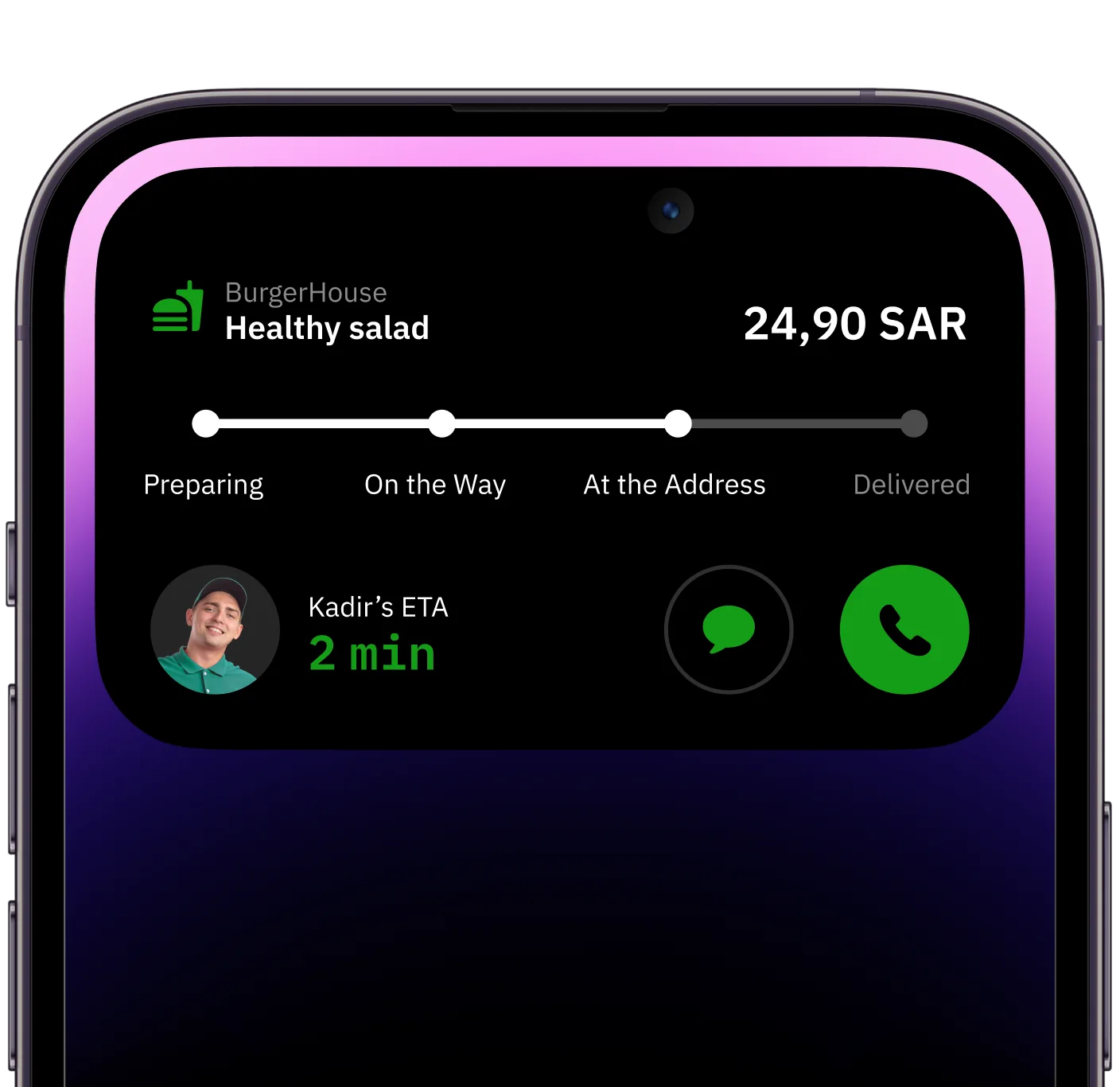
The UI components
Fourteen components
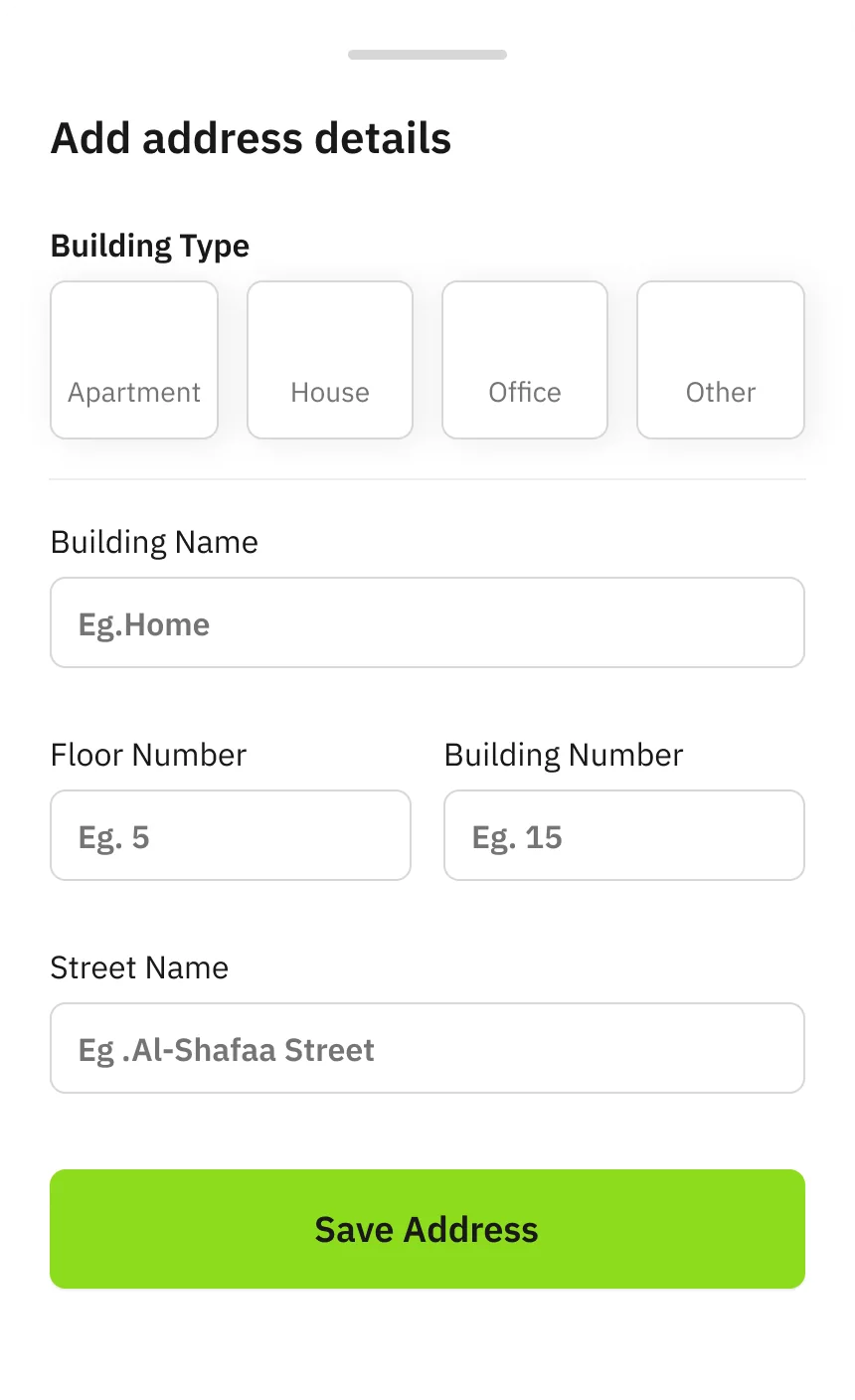
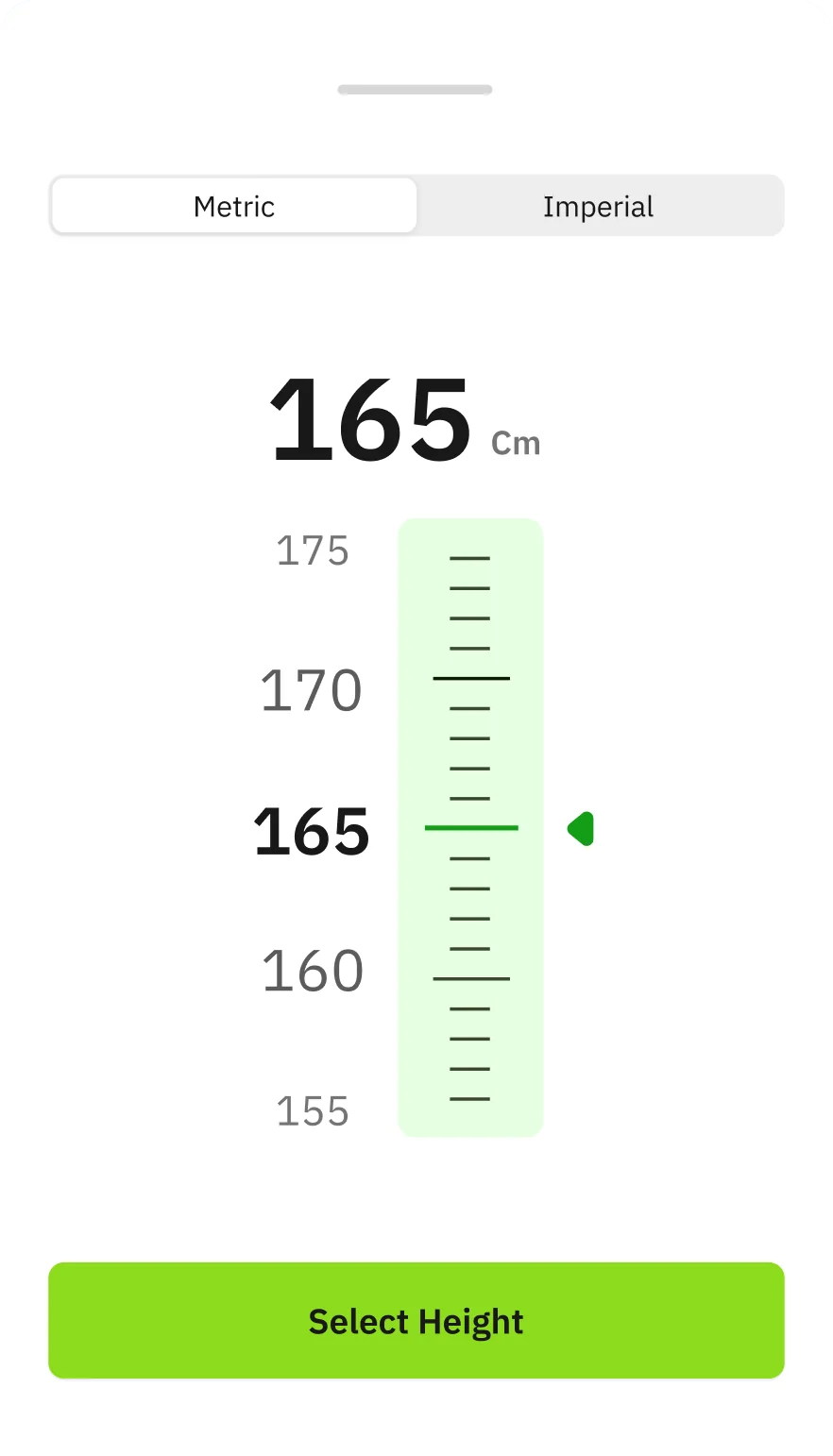
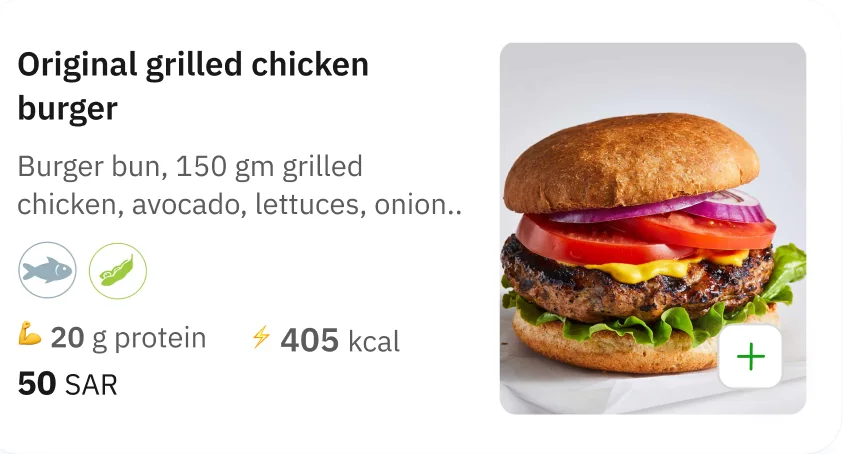
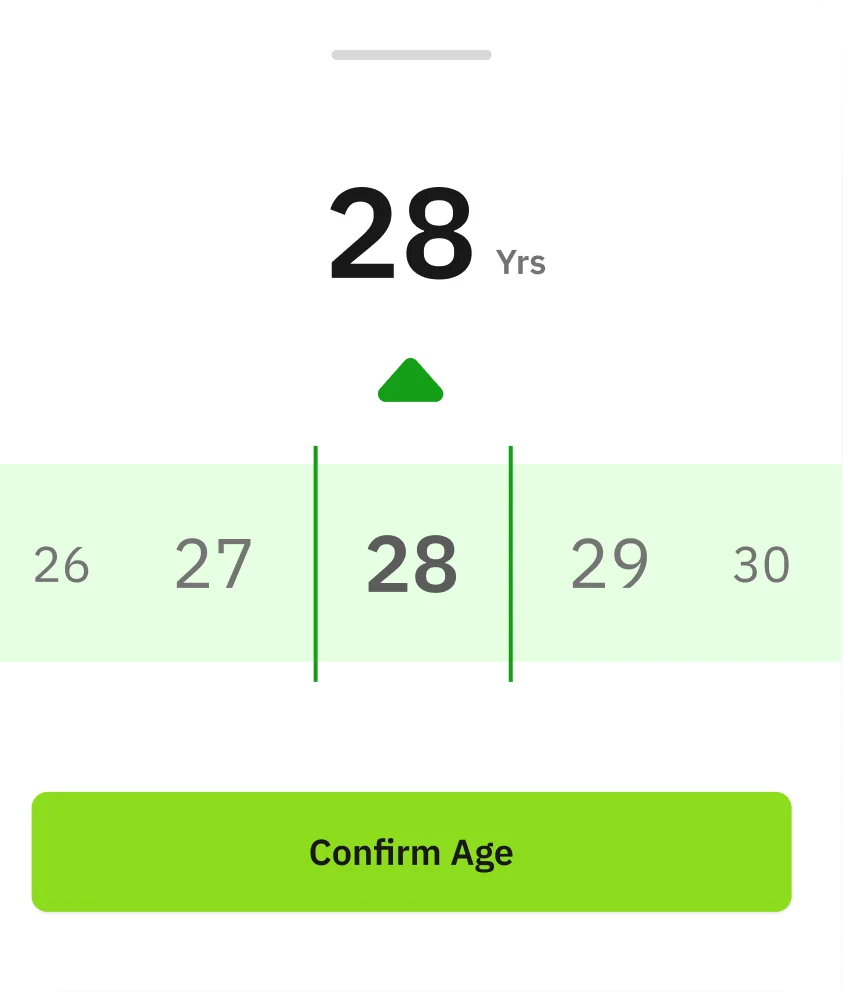
Onboarding pickers, the address flow, ordering, tracking and activity cards, laid out in the same five columns as the Figma collage. Hover to pause, select a card to see it full size.
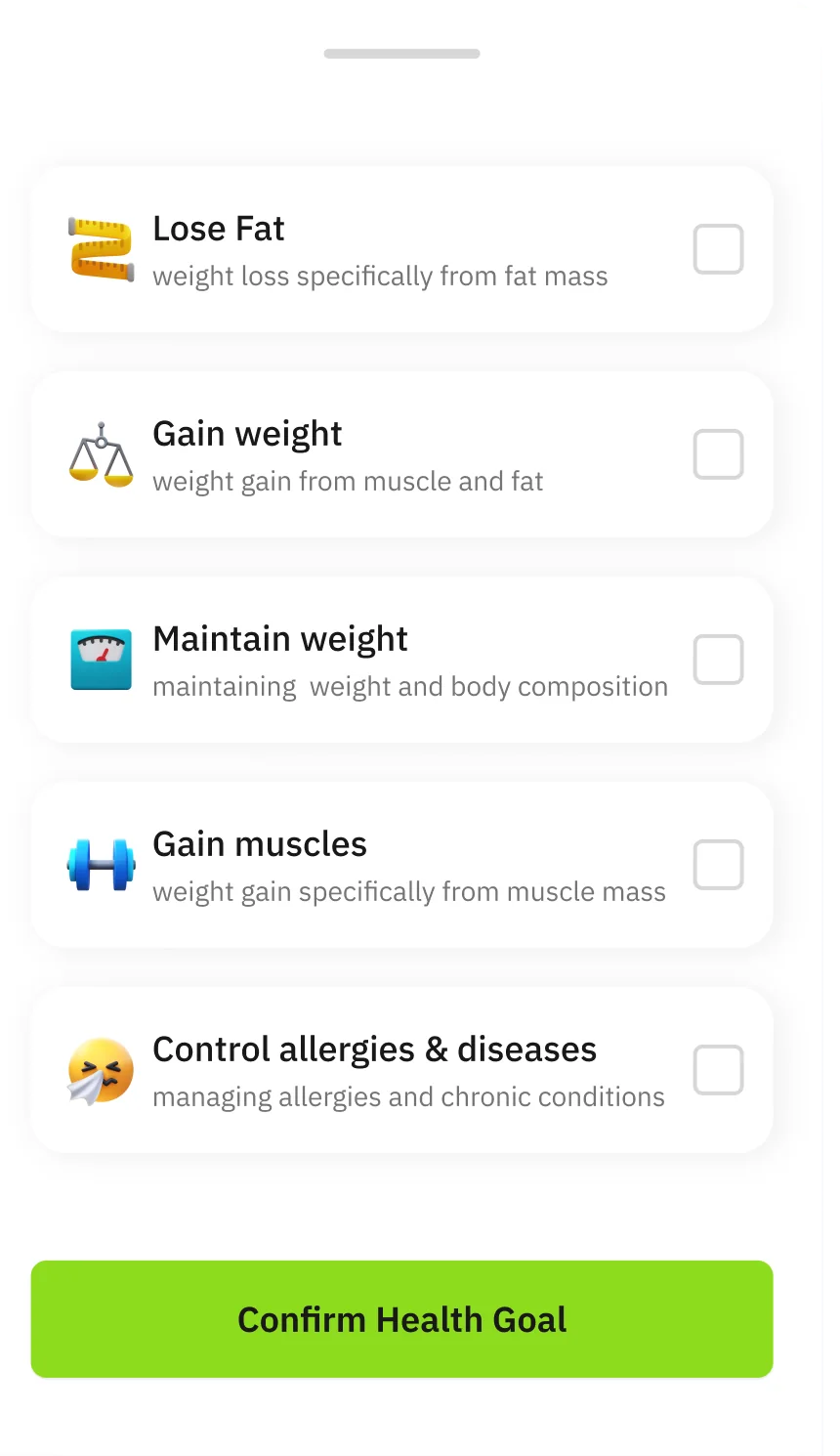
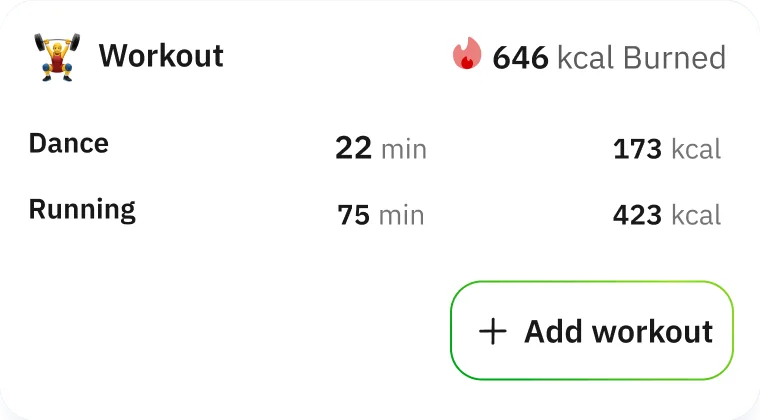

Final screens · 1 Oct 2024 hand-off
Tap through the app
The 97 screens of the final hand-off, by flow. Pick a flow and tap the phone: right side for the next screen, left side to go back. Every screen is also in the rails below.
1 / 1
Keyboard: ← → on the phone, or Tab to the buttons.
All screens by flow · 96 screens + the empty splash frame · drag the rails
Setup / onboarding 24 screens
- 01Welcome to Sor’a — integrate with health app / Set up profile (bottom sheet over Home)
- 02Welcome sheet with health-app permission prompt
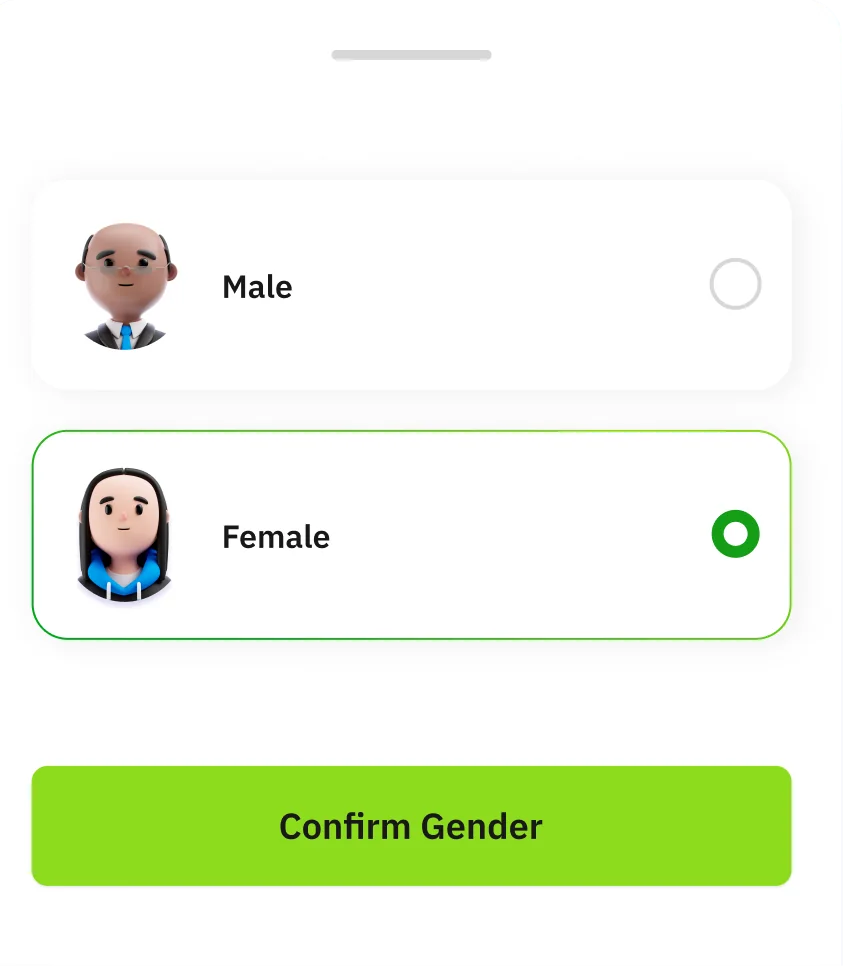
- 03Step 1/5 — What’s your gender?
- 04How old are you? (age wheel, default 28)
- 05What is your height? (Metric / Imperial ruler, default 165 cm)
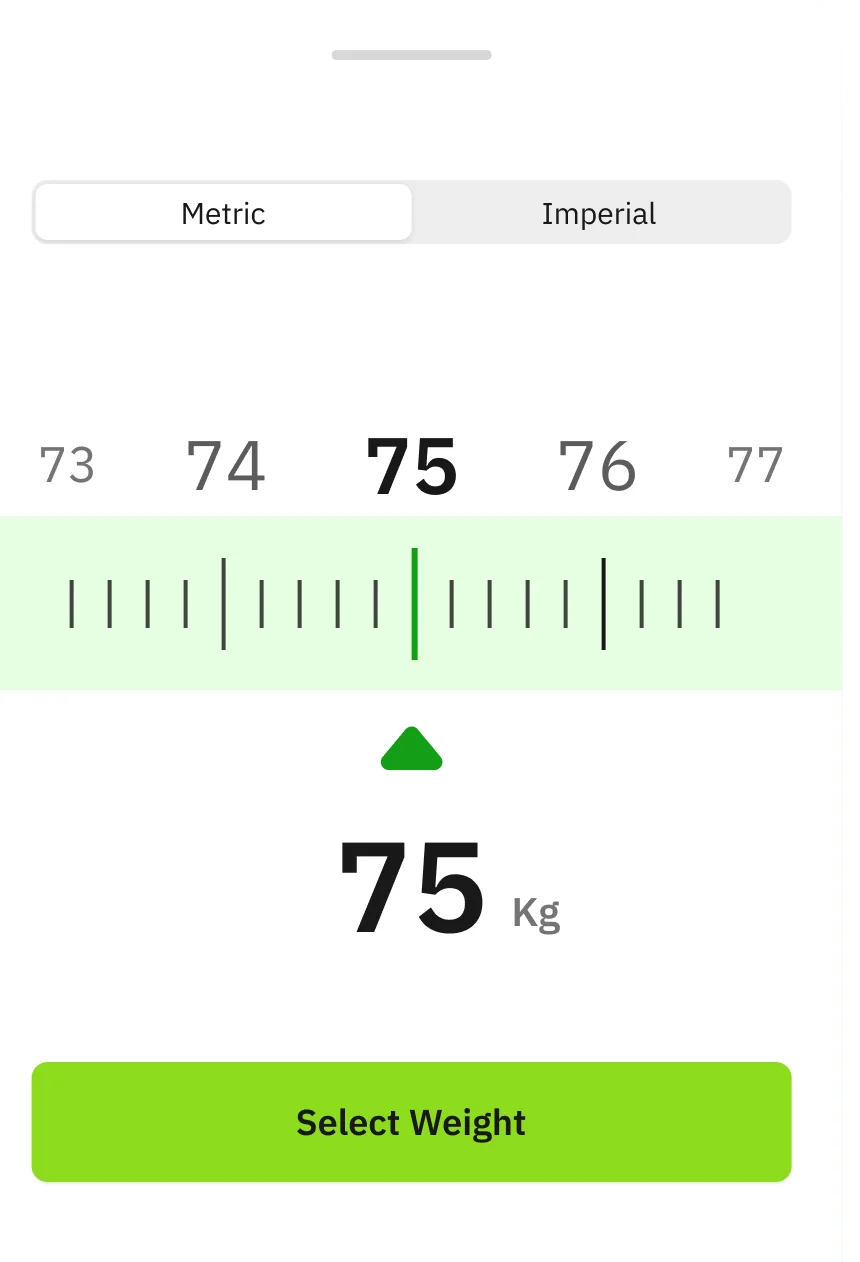
- 06What is your Weight? (ruler, default 75 kg)
- 07Step 4/5 — Physical Activity Level
- 08My plan — No Meal Plan Yet? / Plan meals
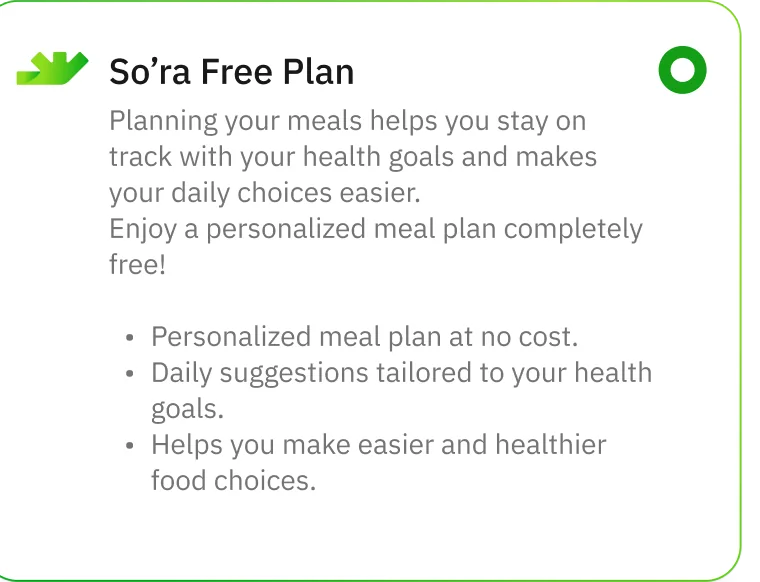
- 09Need a personalized meal plan? — Create my free plan / I already have a plan
- 10My plan — No Meal Plan Yet? (expanded overview)
- 11Create my free plan — Step 1/6 What is your goal?
- 12Step 2/6 — Let’s define your weight loss journey:
- 13Step 3/6 — Do you follow any specific dietary preferences or restrictions?
- 14Step 4/6 — Which meals do you usually have?
- 15Step 4/6 — Add Meal (meal name, duration, meal icon)
- 16Step 5/6 — Tell us about your health:
- 17Step 6/6 — Select meals you enjoy the most:
- 18You’re all set up — 1700 Kcal, Goal Weight: 72 Kg
- 19I already have a plan — Daily Intake Setup
- 20Daily Intake Setup — Add Meal sheet
- 21Daily Intake Setup — added meals
- 22Calories Intake Setup — calories per meal
- 23Dietary Restrictions
- 24You’re all set up (own plan)
Log in / sign up 10 screens
- Splash screenAn empty frame in Figma: the splash animation lives in a separate JSON file, so there is no screen to show.Splash screen (empty frame — animation lives in a separate JSON)
- 01Log in — Mobile number (empty)
- 02Log in — Mobile number (filled)
- 03OTP — Enter the verification code we just sent
- 04OTP — code from Messages filled
- 05OTP — filled, Continue
- 06Sign up — User name, Email, Mobile number
- 07Sign up OTP — empty
- 08Sign up OTP — filled
- 09Sign up OTP — filled, Continue
Home 14 screens
- 01Home empty state (latest version, placed outside the sections)
- 02Home empty state
- 03Home filled state
- 04Full home screen (scroll)
- 05Select category (fixed content)
- 06Breakfast meal — Calorie Intake summary (clicking a checked meal card)
- 07Generate meal (clicking a meal card)
- 08Restaurants — Order again (clicking view more)
- 09Filter by
- 10Filter by — Nutritional value (range sliders)
- 11Filter by — Nutritional value (50 kcal selected)
- 12Filter by — Dietary type
- 13Filter by — Price range (Budget / Mid-range / High-end)
- 14Sort by
Search 3 screens
- 01Search — empty state (new user)
- 02Search — last and popular searches
- 03Search — 'Burger' category results
My plan 3 screens
- 01Plan screen — Today’s Overview
- 02Plan screen — second variant
- 03Manage step tracking (clicking on Steps card)
Order flow · ordering & tracking 22 screens
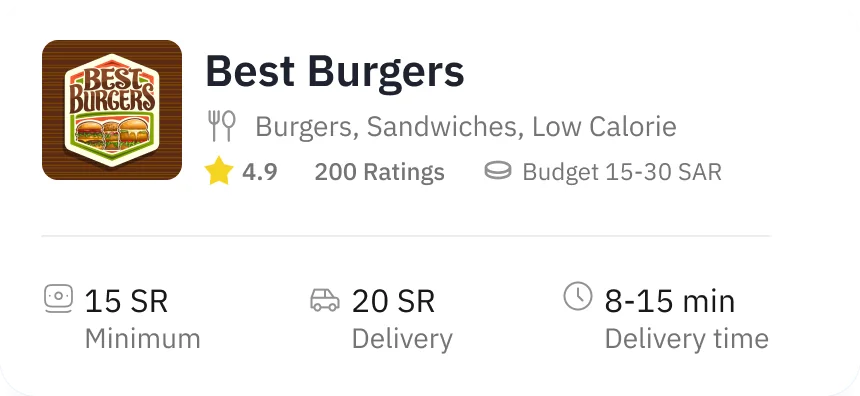
- 01Restaurant Page — Best Burgers menu
- 02Restaurant Page — item added, cart bar shown
- 03Customize To Your Liking — Remove Ingredients default
- 04Customize — ingredient selected for removal
- 05Meal details — allergens listed
- 06Cart — Option 1
- 07Cart — Option 2, no promo code
- 08Cart — adding promo code
- 09Checkout — Cash on delivery
- 10Checkout — Pay with apple
- 11Choosing payment method (sheet)
- 12Adding new card (sheet)
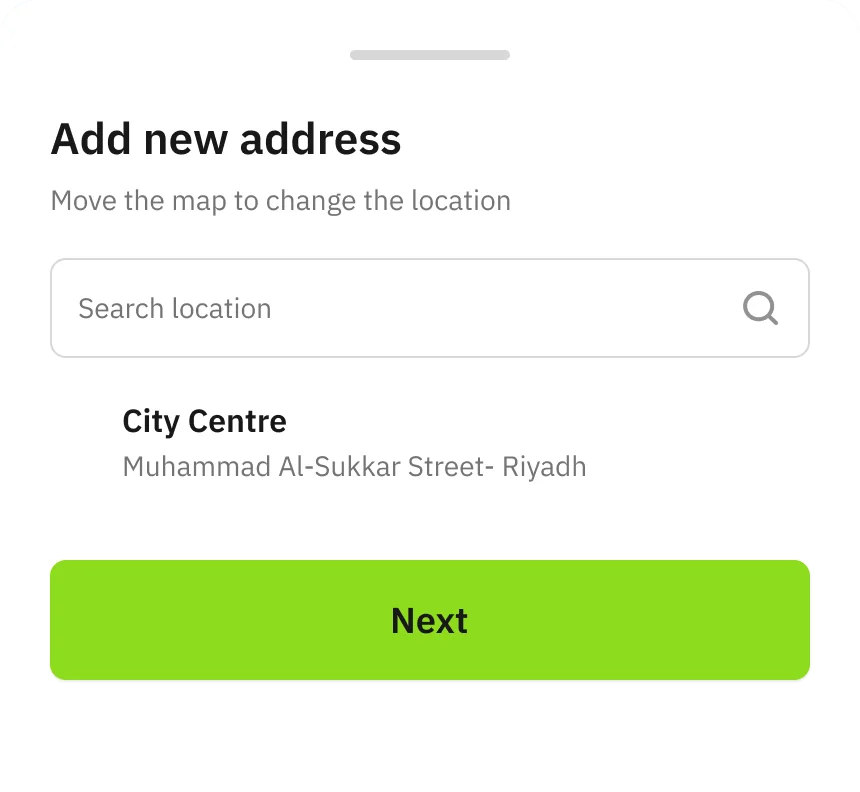
- 13Delivery Address (sheet)
- 14Add new address — map
- 15Add address details
- 16Track Order — stage one
- 17Track Order — stage two, order accepted
- 18Track Order — stage three, preparing
- 19Track Order — stage four, captain assigned + on the way
- 20Track Order — stage five, order delivered
- 21Order Successfully Delivered (appears as soon as the captain delivers)
- 22Delivered to Home — order details
Order flow · log meal 20 screens
- 23Log Meal (canvas label '🗒️ Log meal- Dinner', screens show Lunch)
- 24Log meal — Lunch sheet
- 25Log meal — Lunch items selected
- 26Lunch Successfully Logged! — 583 Kcal, within range
- 27Lunch Successfully Logged! — 760 Kcal, a little over
- 28Insight — No Worries! (over intake)
- 29Lunch Successfully Logged! — 240 Kcal, a little under
- 30Insight — That’s Fine! (under intake)
- 31Log meal — Breakfast (empty, no calorie count yet)
- 32Log meal — Breakfast sheet
- 33Log meal — Breakfast items selected
- 34Breakfast Successfully Logged! — 583 Kcal
- 35Breakfast Successfully Logged! — 760 Kcal
- 36Breakfast Successfully Logged! — 240 Kcal
- 37Log meal — Dinner (all filled, user can still log)
- 38Log meal — Dinner sheet
- 39Log meal — Dinner items selected
- 40Dinner Successfully Logged! — 583 Kcal
- 41Dinner Successfully Logged! — 760 Kcal
- 42Dinner Successfully Logged! — 240 Kcal
Profile 1 screen
- 01Profile — Sara Ahmad
Restaurant version · web dashboard
The restaurant app
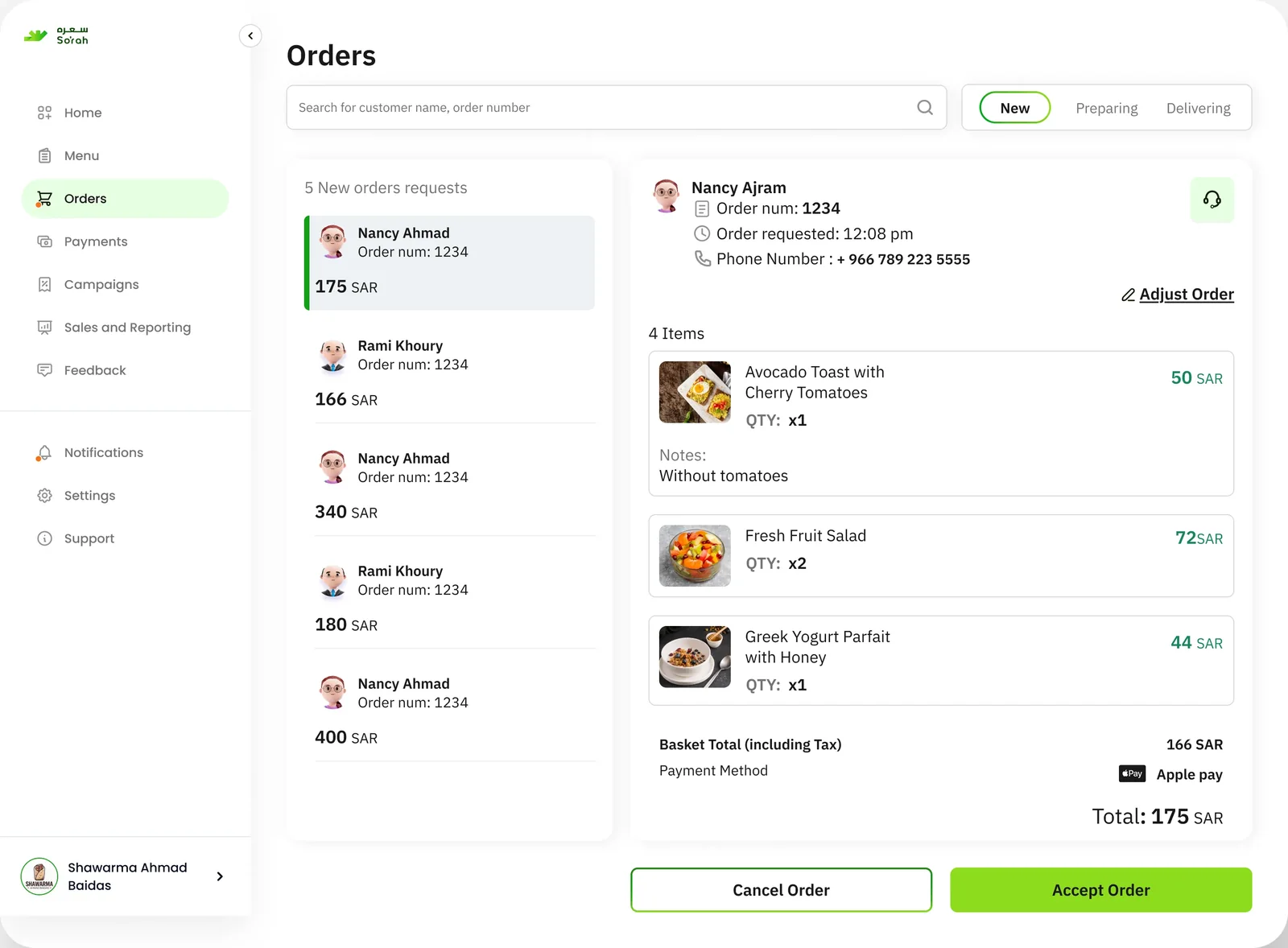
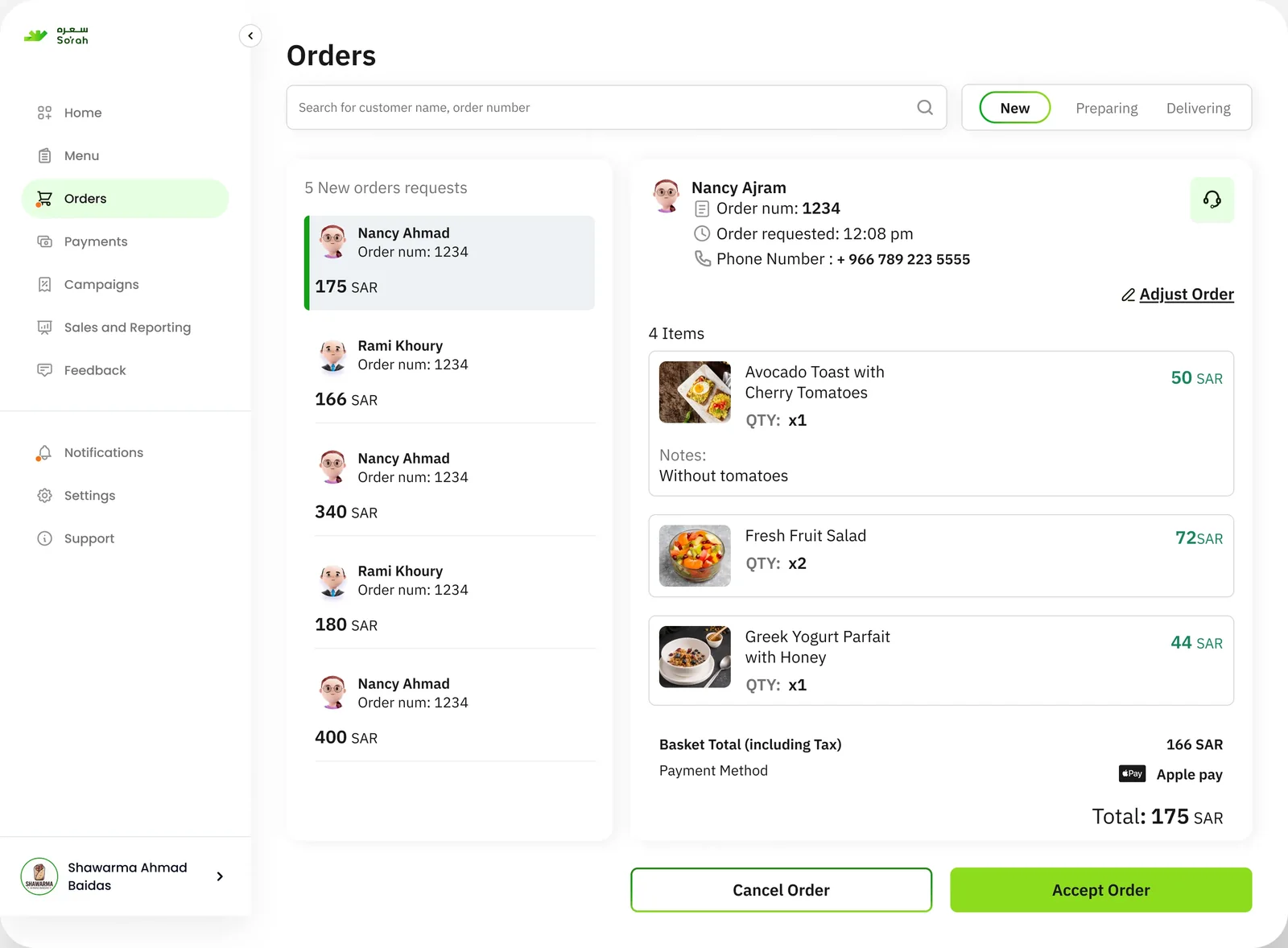
The restaurant version was designed as a web dashboard: a home overview of the day’s performance and an orders screen to review and act on each order.
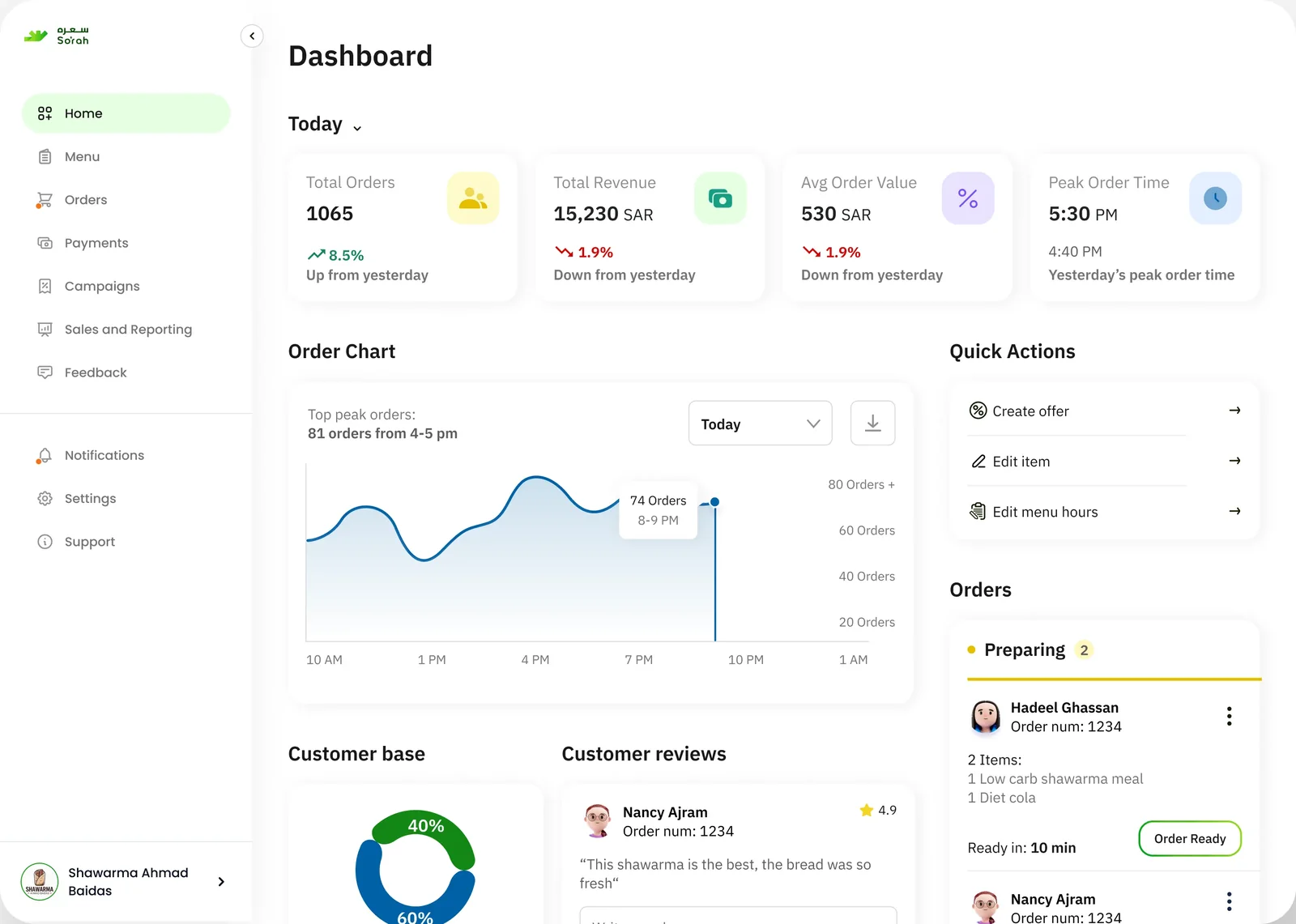
All 11 dashboard screens · drag
- DashboardDashboard
- DashboardDashboard expanded
- MenuMenus overview
- MenuBreakfast
- MenuBreakfast expanded
- OrdersOrder Details
- CampaignsCampaigns overview
- CampaignsAds
- CampaignsOffers
- PaymentsPayments
- Sales and ReportingSales and Reporting
Restaurant app · order scenarios
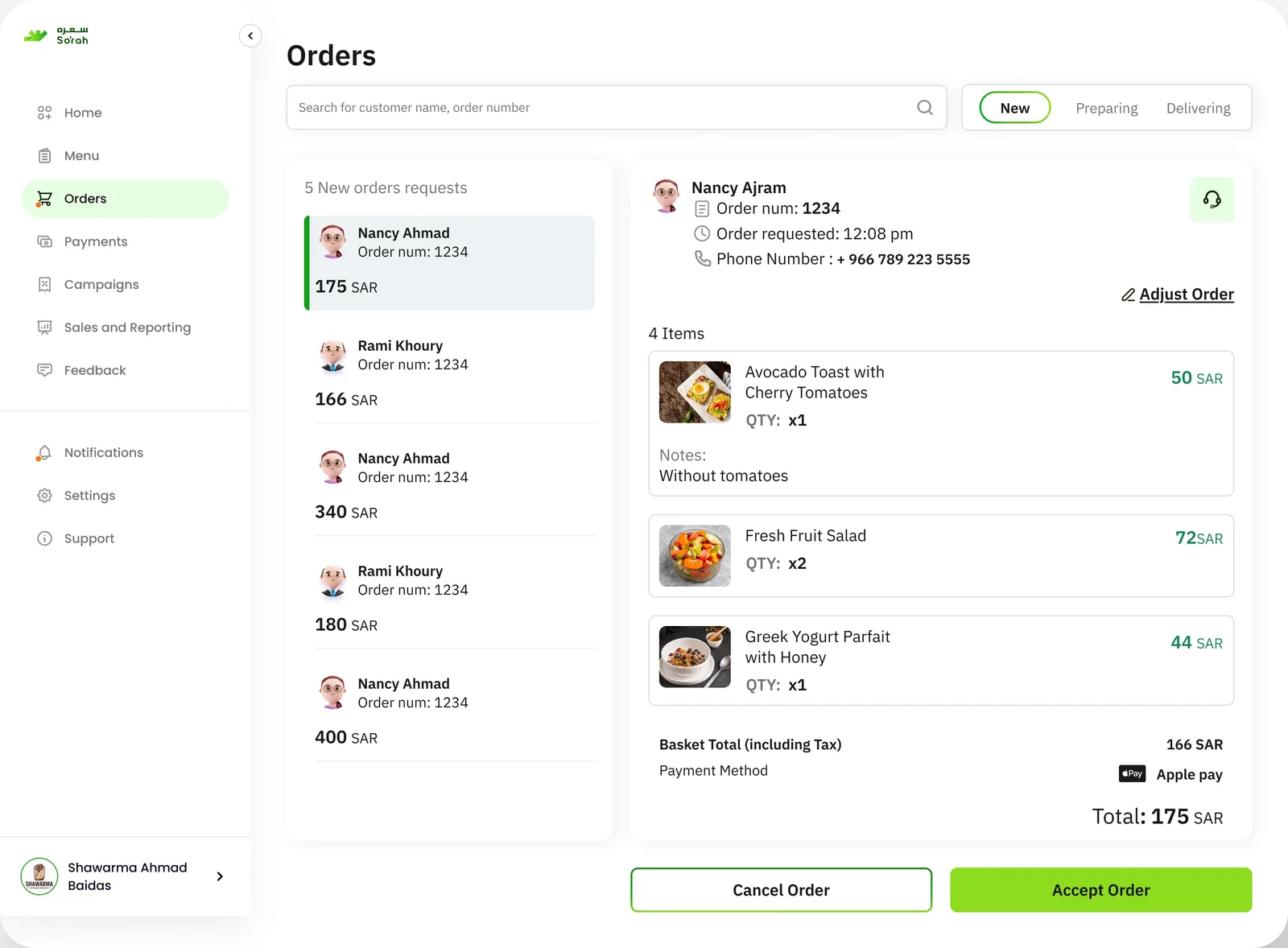
What happens to a new order
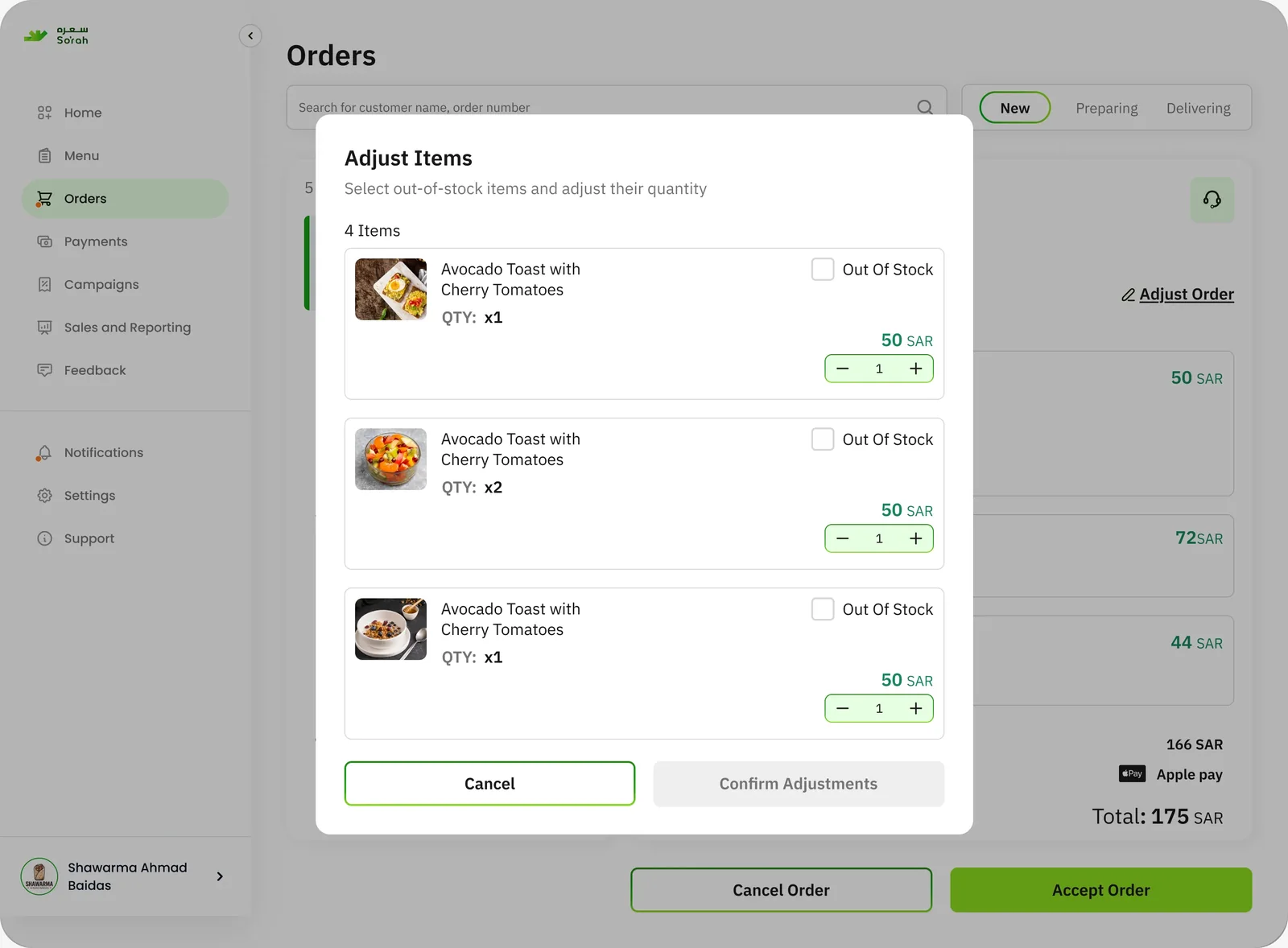
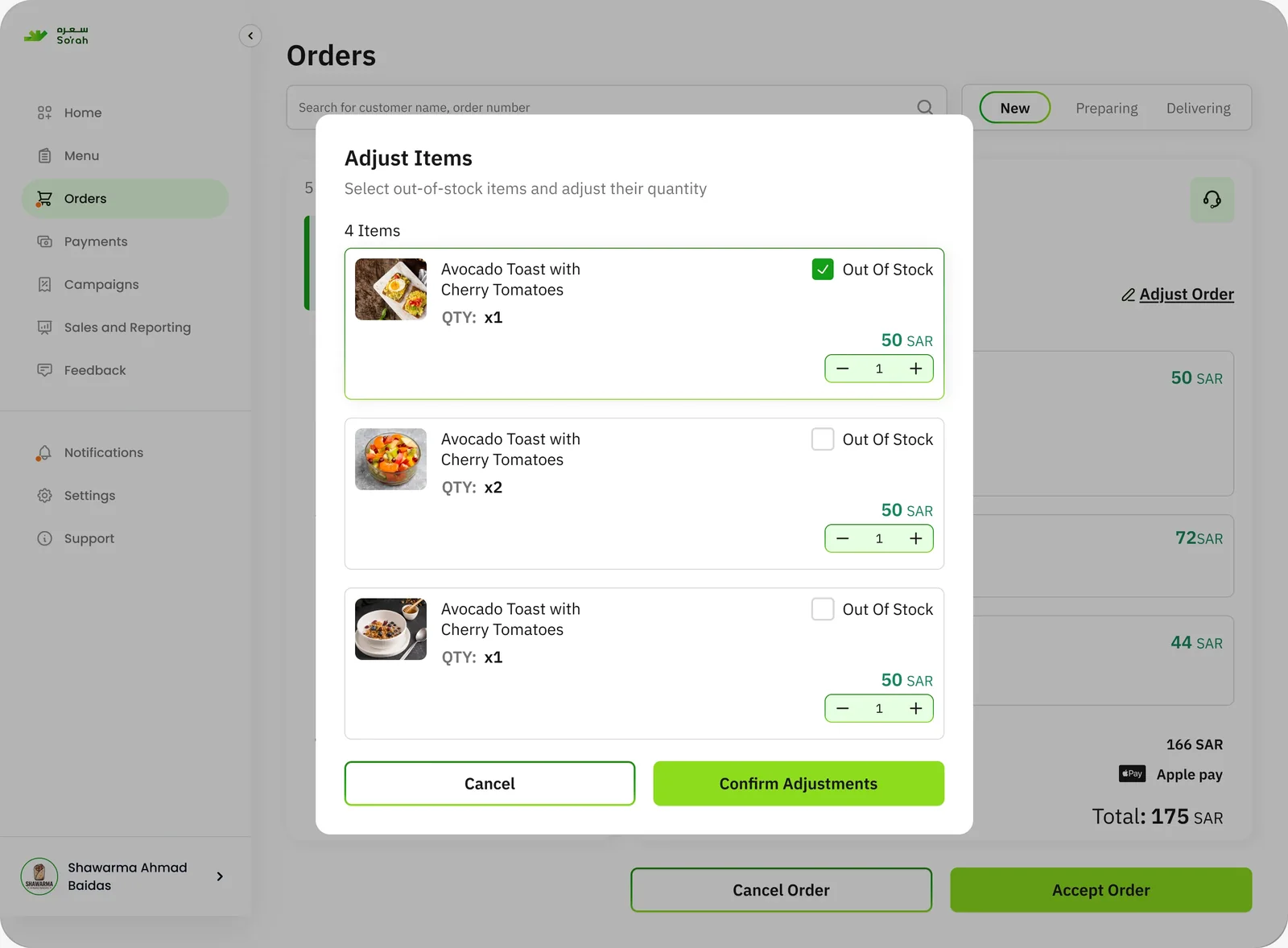
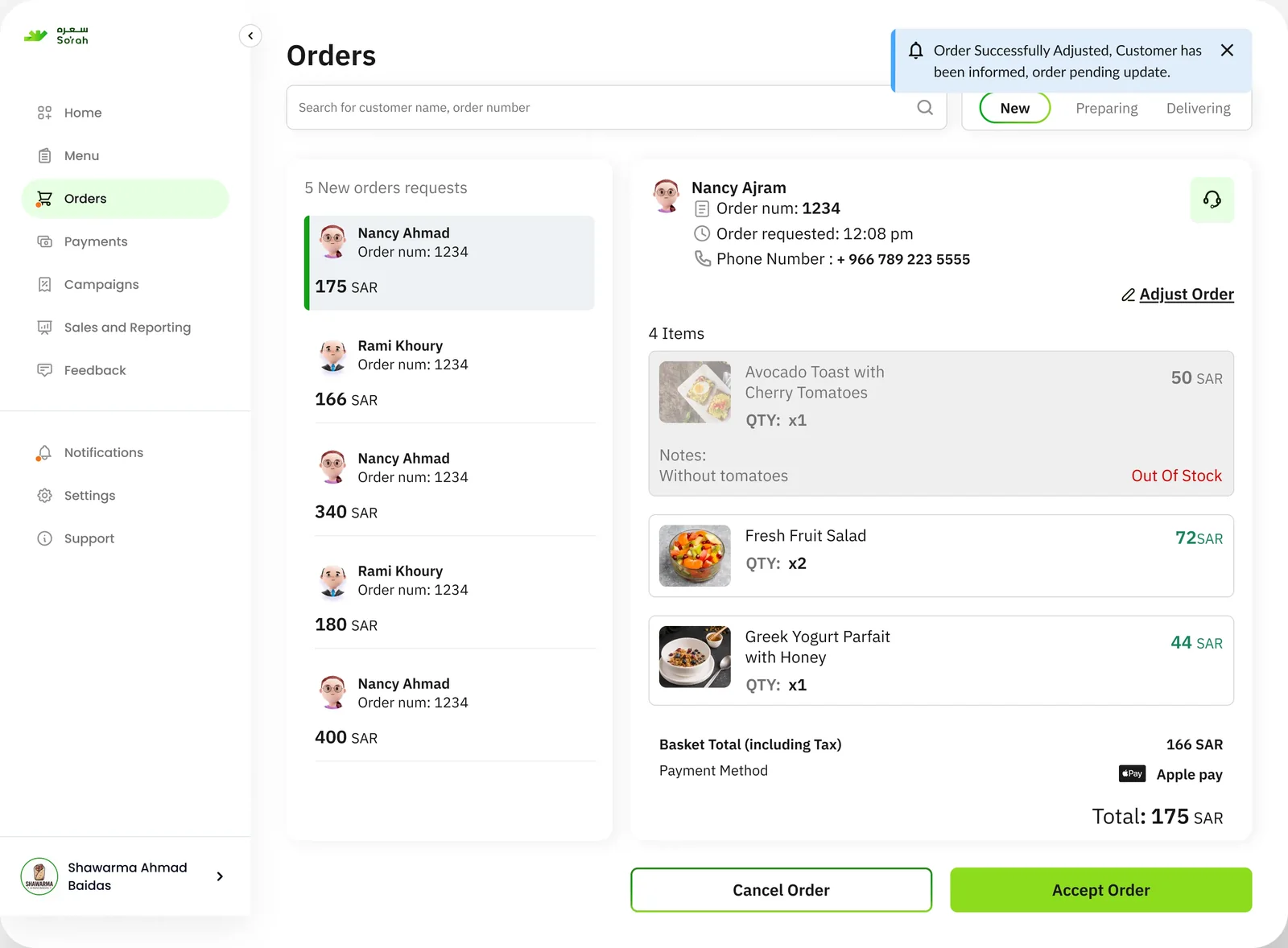
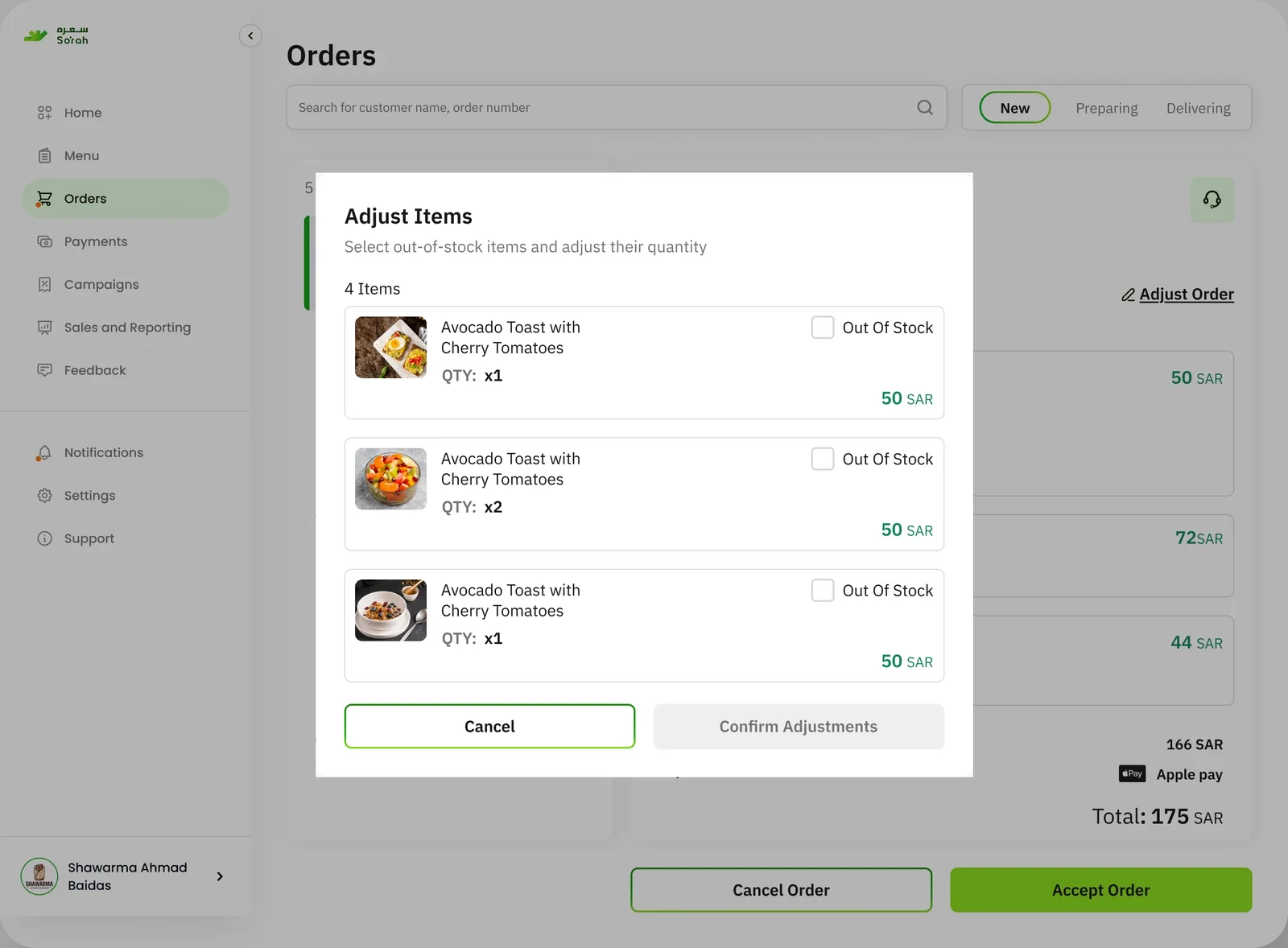
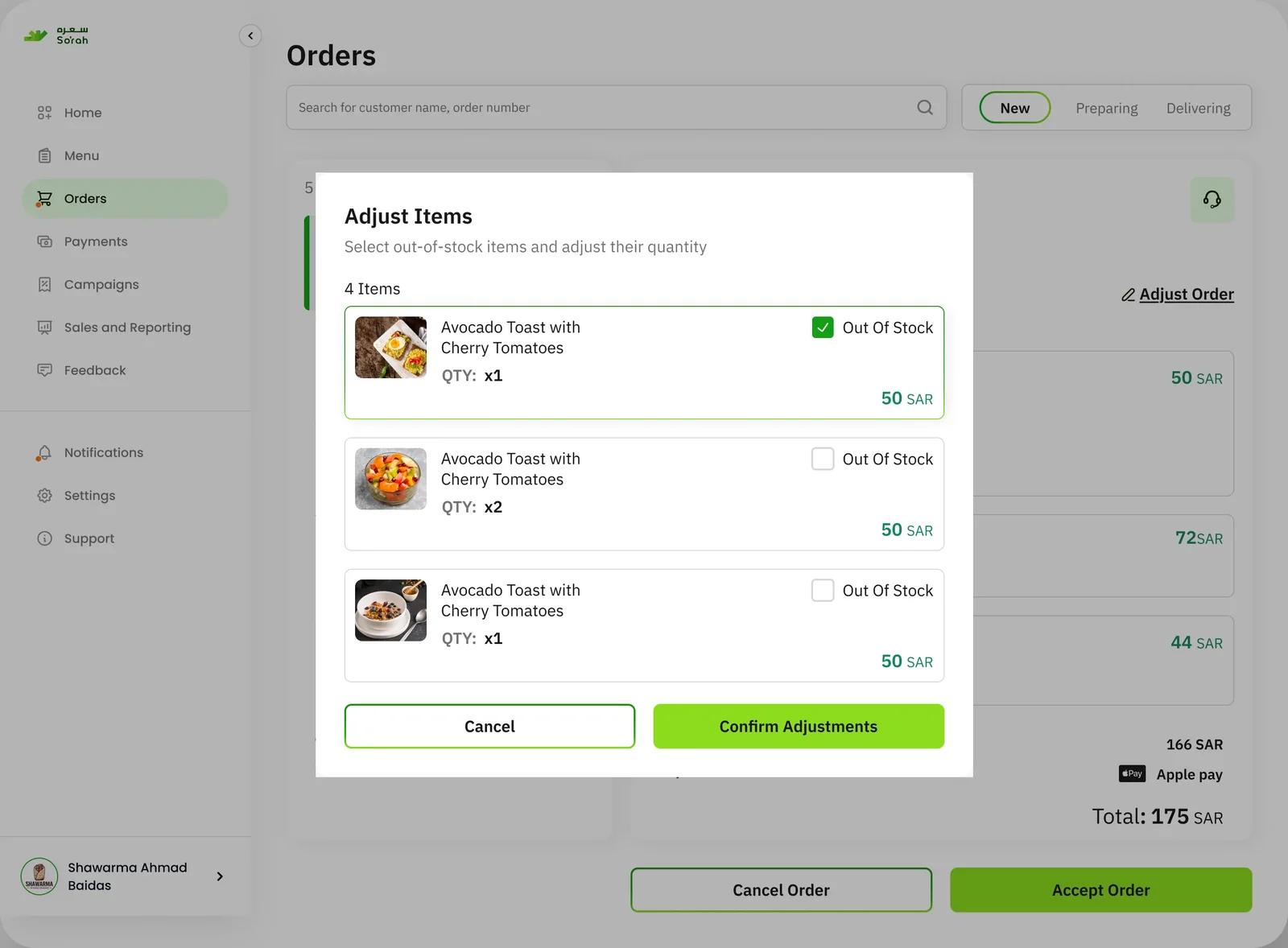
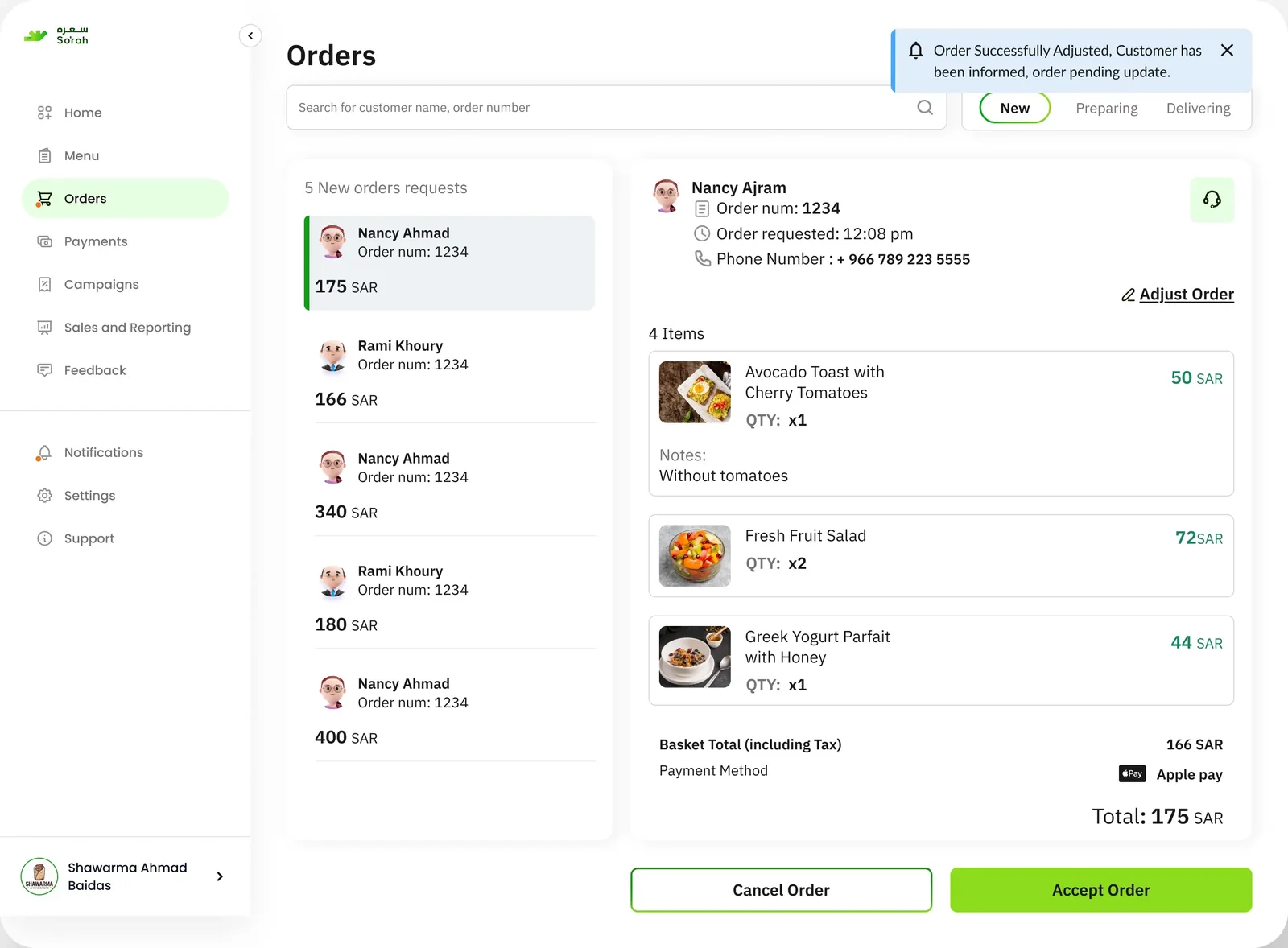
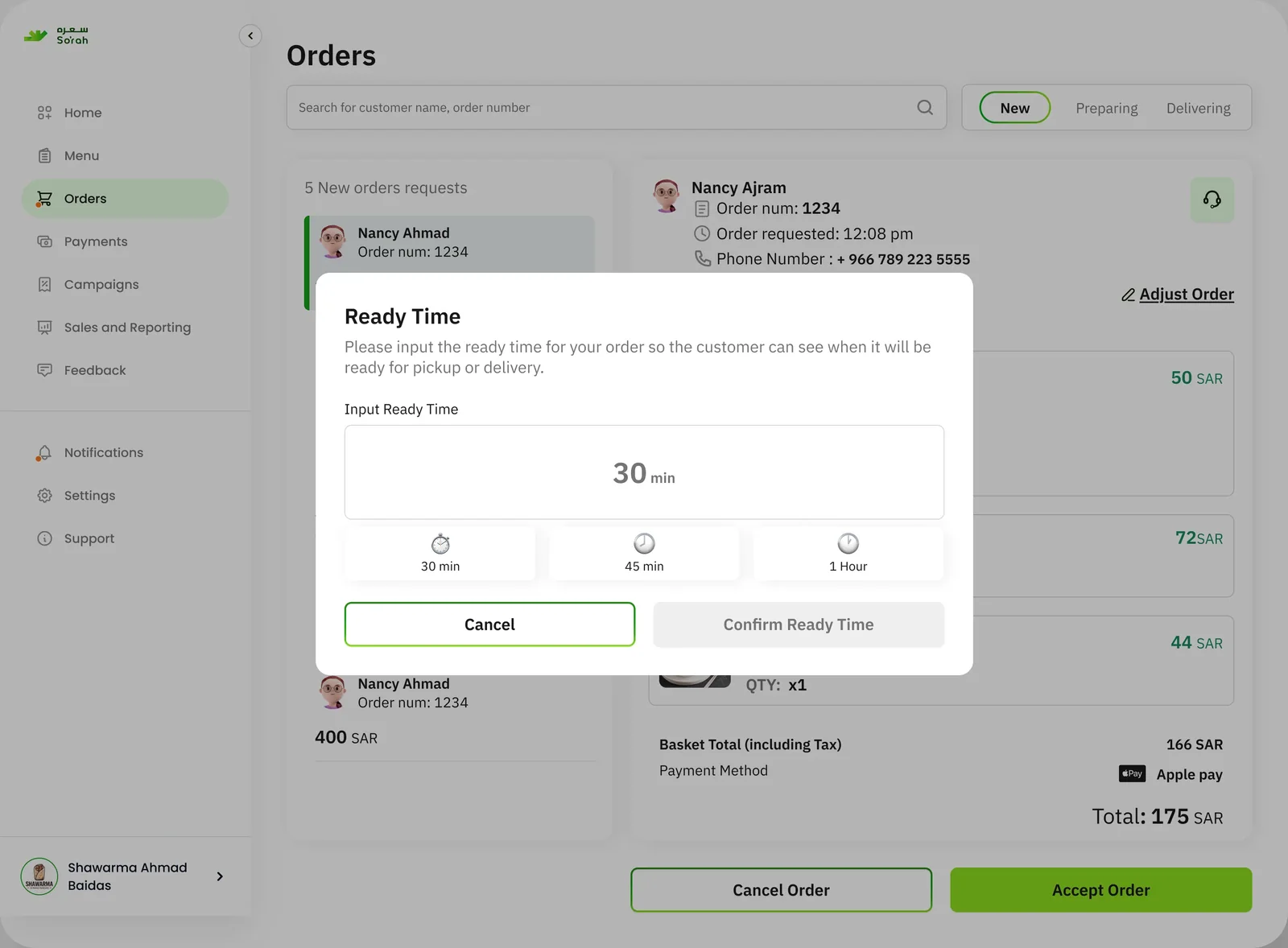
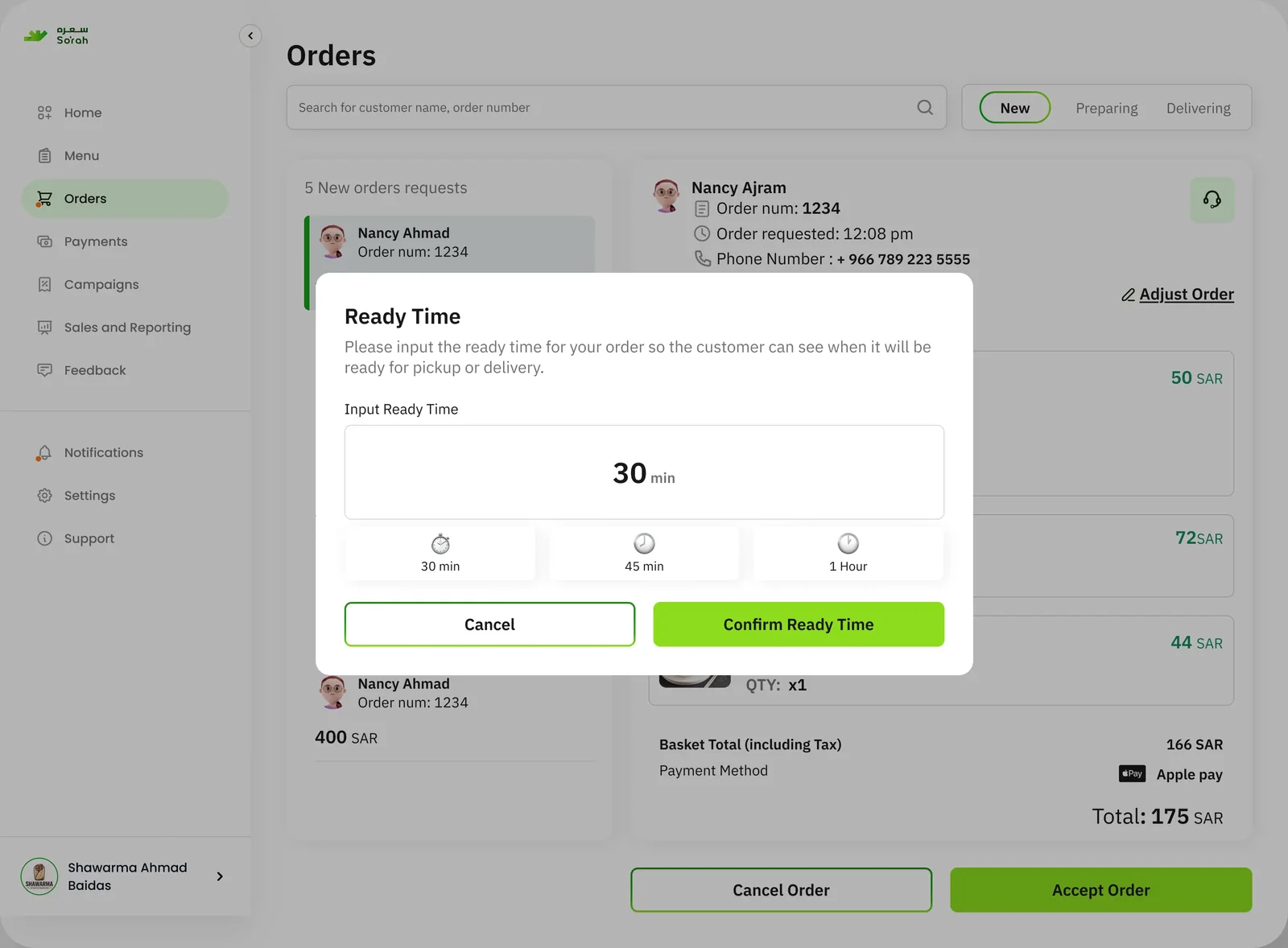
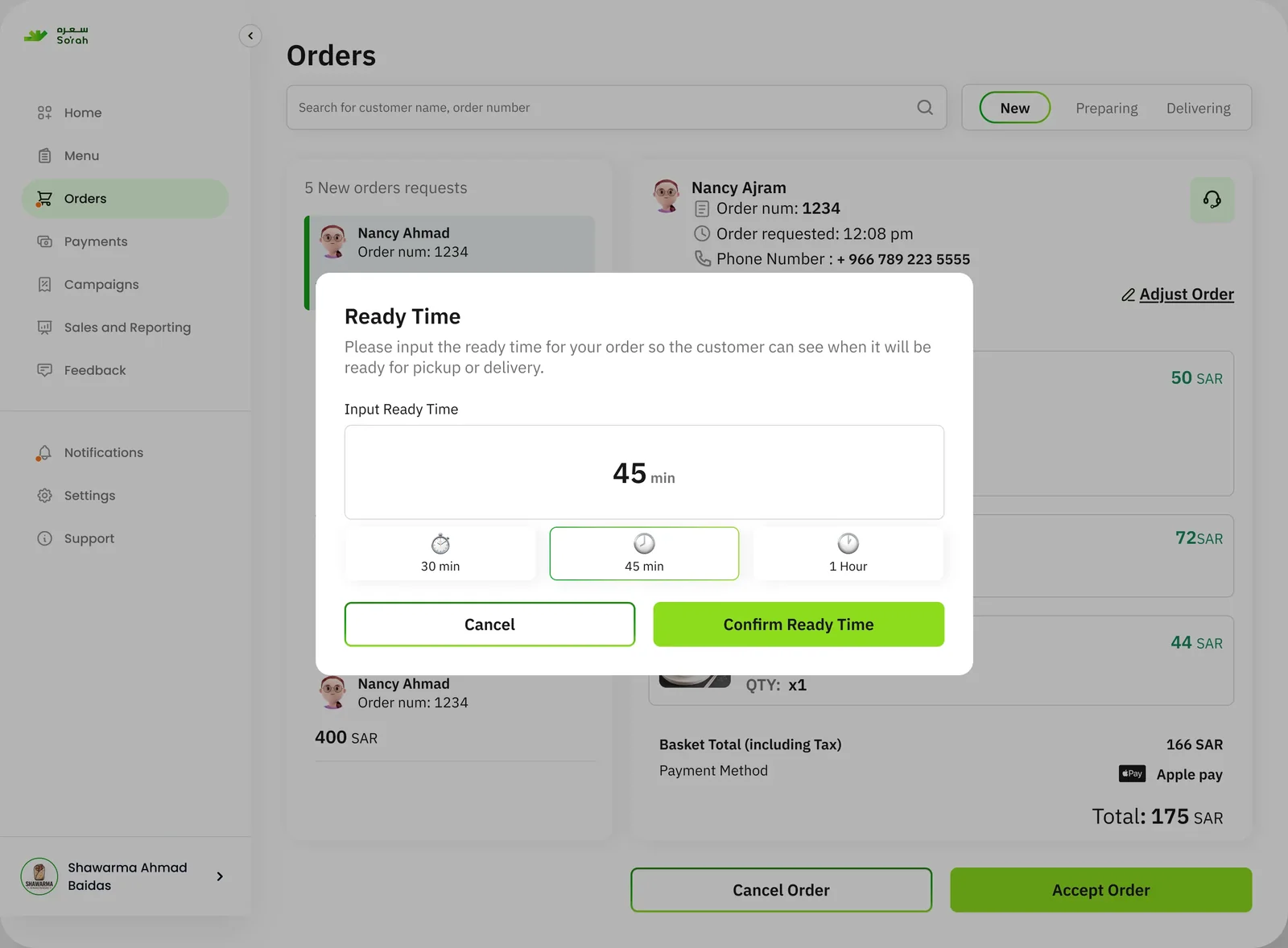
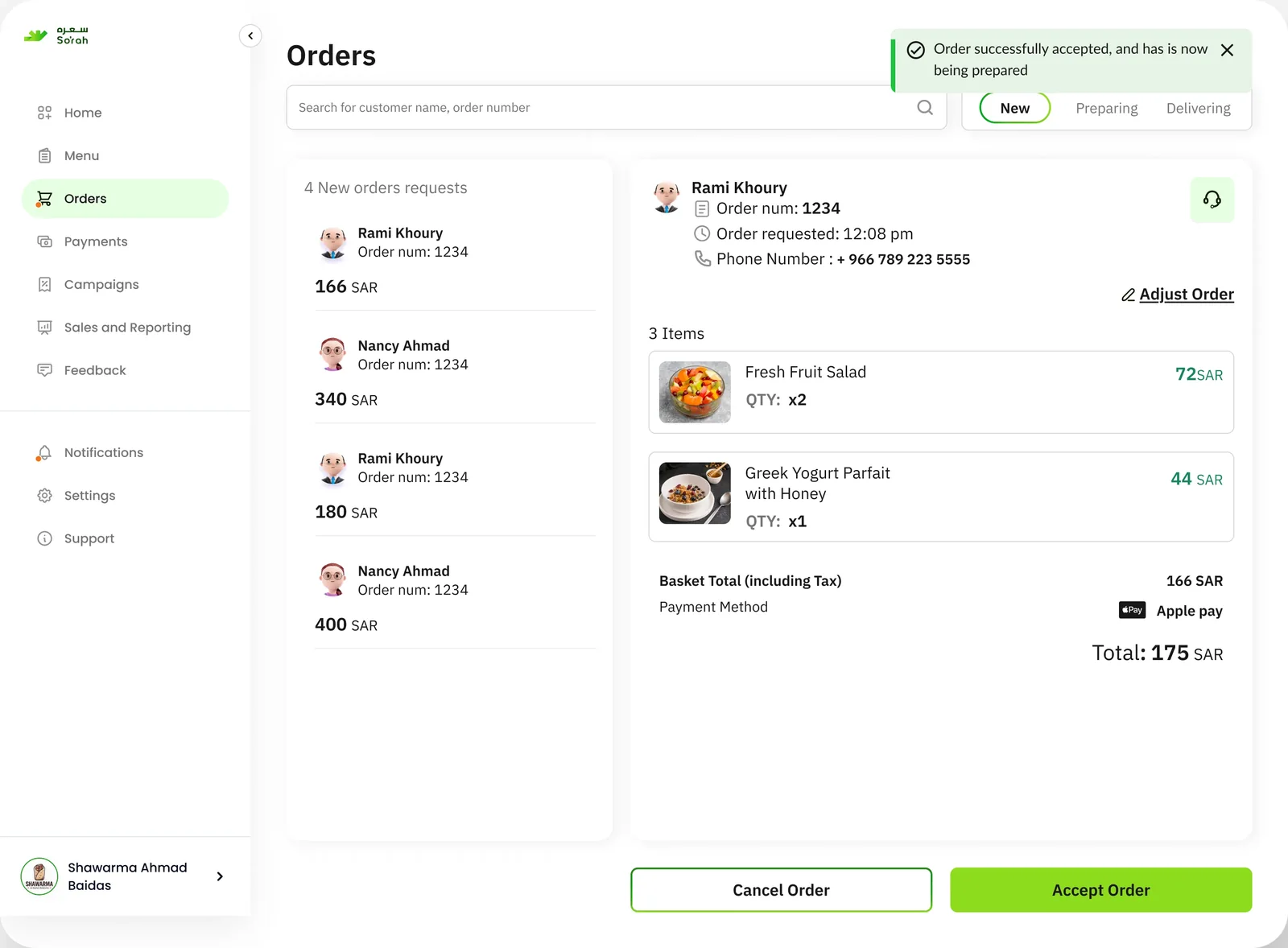
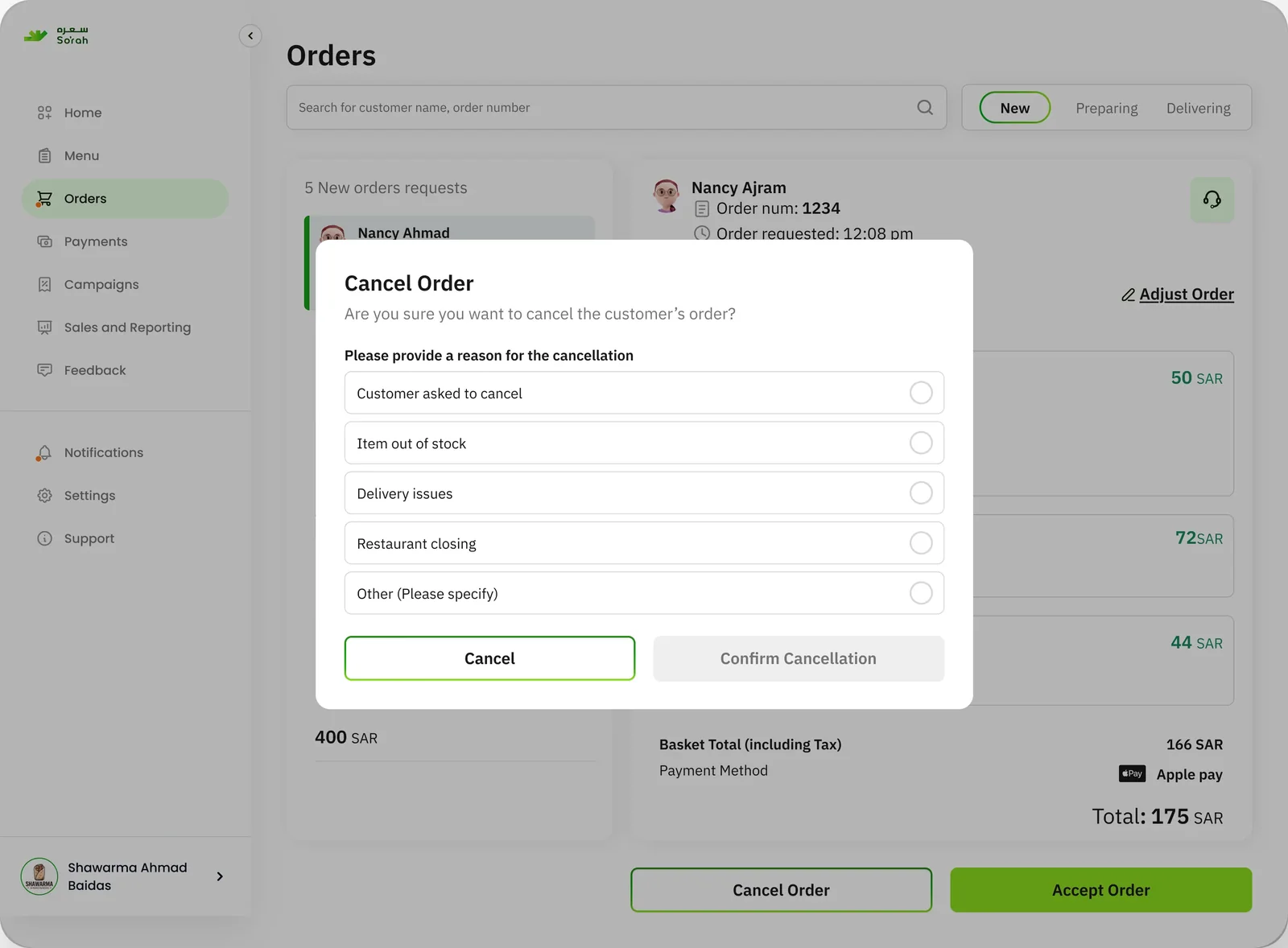
Each scenario row from the Pixel Box, step by step: adjust it, mark items out of stock, accept it with a ready time, or cancel it with a reason. Scroll to play the steps in the browser frame; select a step to jump to it.
New Order Screen 1 step
Adjust Order 4 steps
Out Of Stock 4 steps
Accept Order + Adjust Time 5 steps
Cancel Order 3 steps
Restaurant app · Comps
Built from shared components
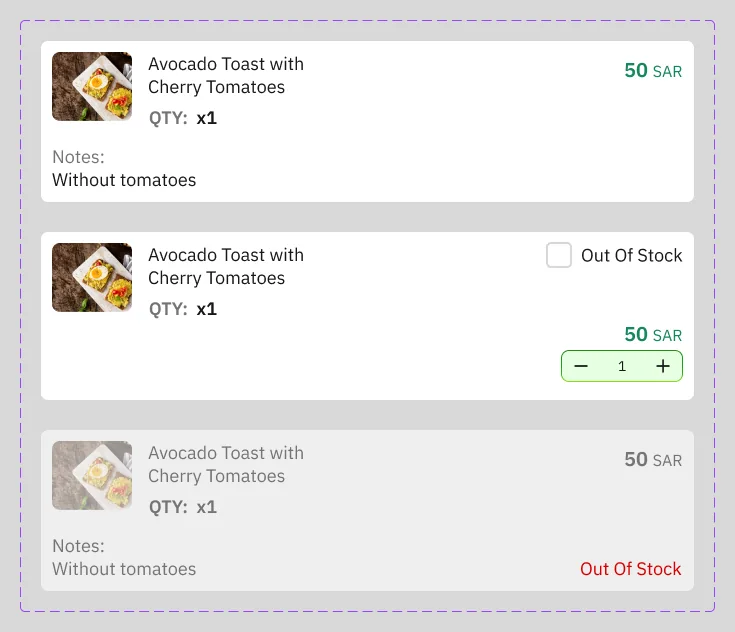
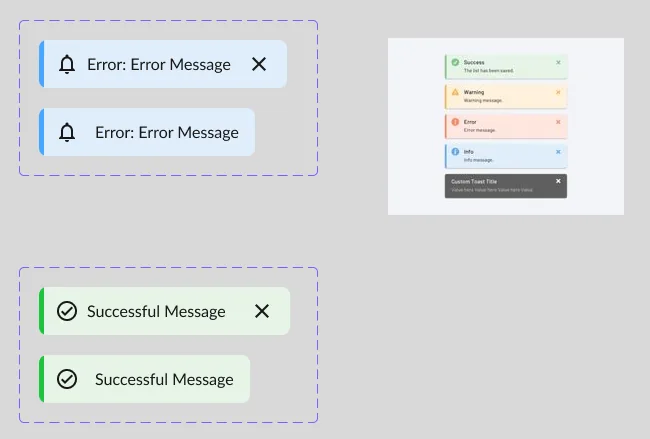
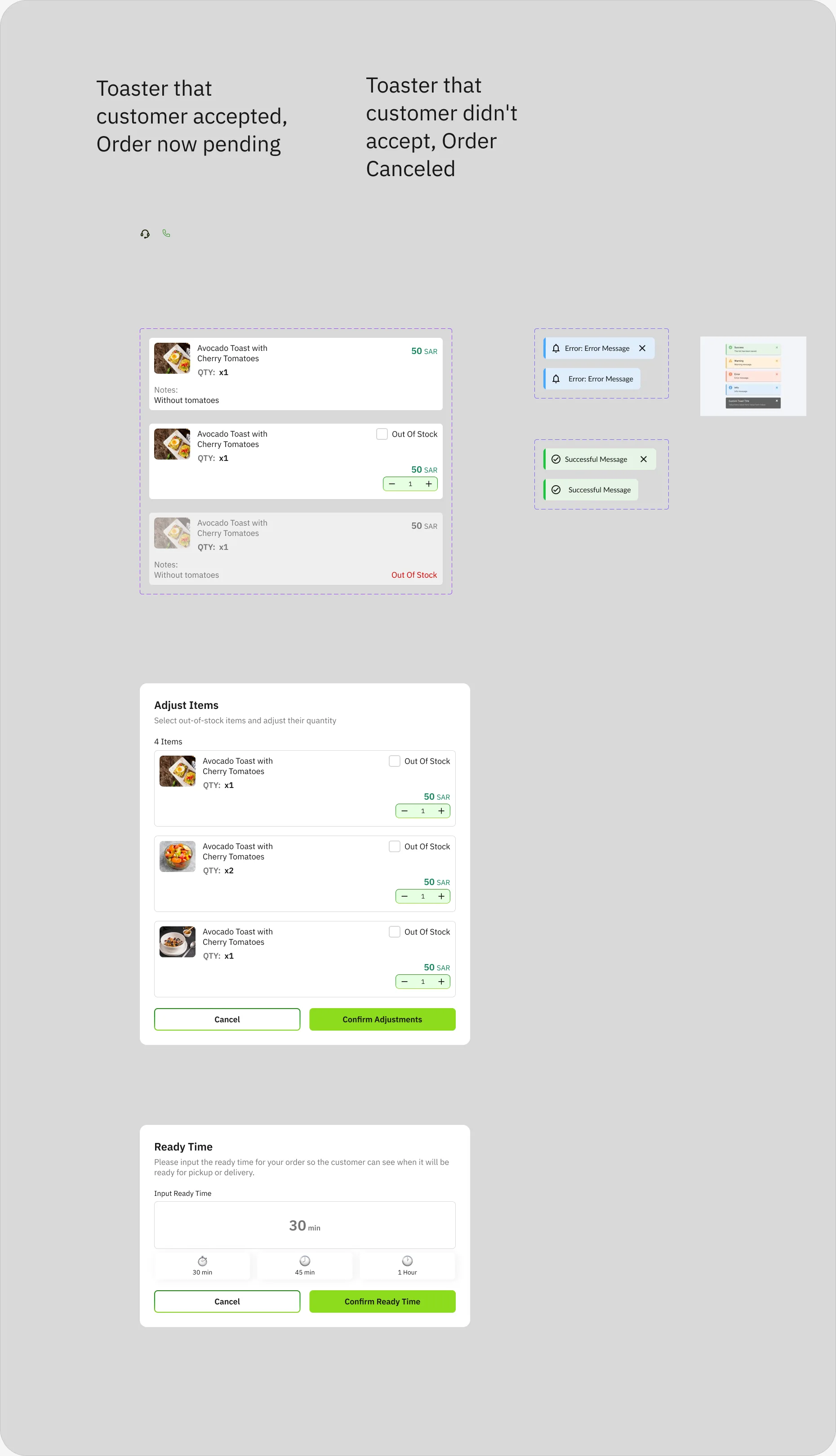
The merchant screens reuse one set of components: order card states, alerts and pop-ups. Two large notes on the board name the toasts for the customer’s answer to an adjustment.
Toaster that customer accepted, Order now pending
Toaster that customer didn’t accept, Order Canceled
On the Comps board
- Order Card — variants: Default / Out Of Stock / Adjust
- Alert/Notification — Times=true / Times=false ('Error: Error Message')
- Alert/Notification — Times=true / Times=false ('Successful Message')
- Pop Up — Adjust Items
- Pop Up — Ready Time
- two 20–24 px icon components (support, phone)
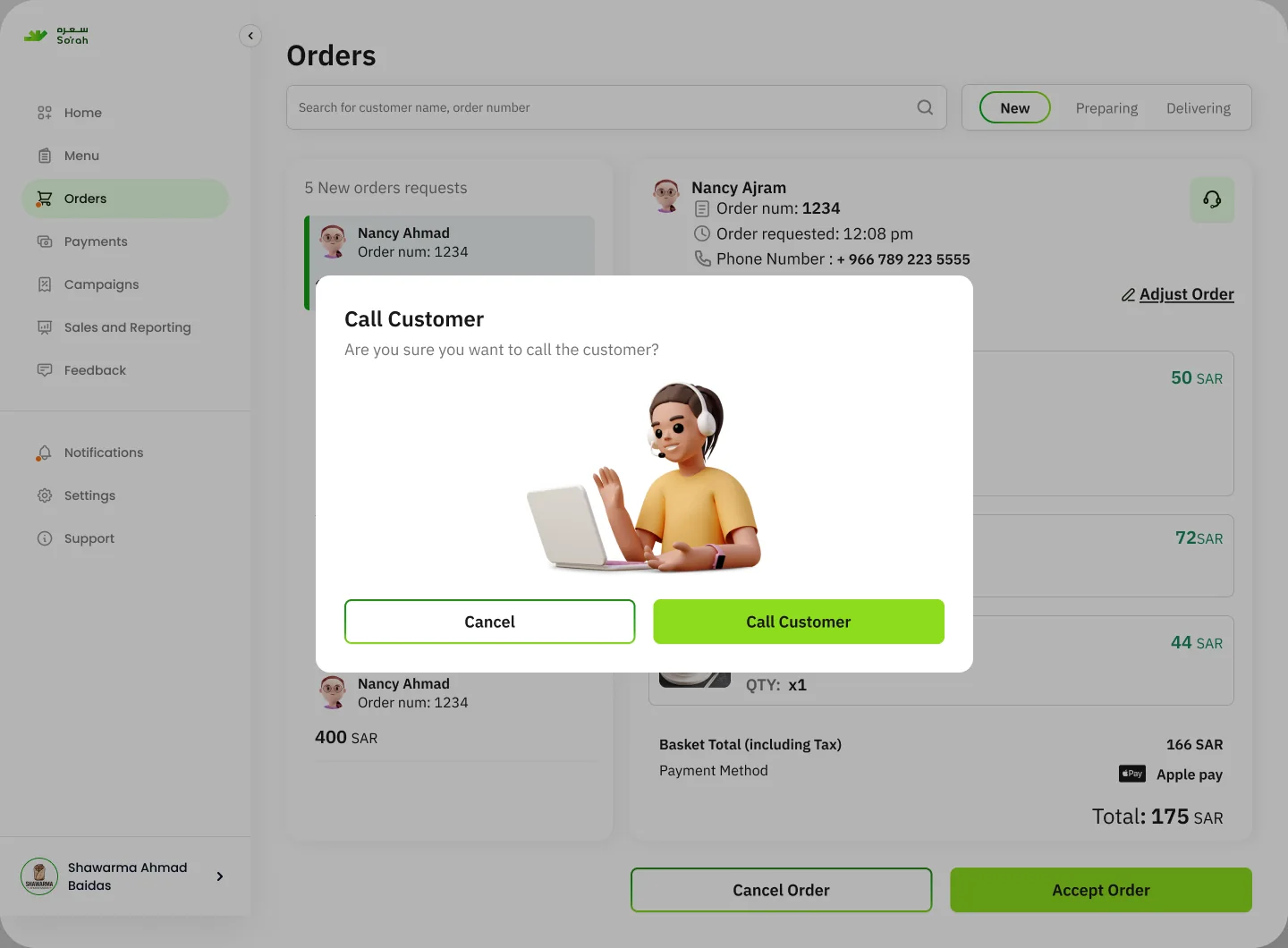
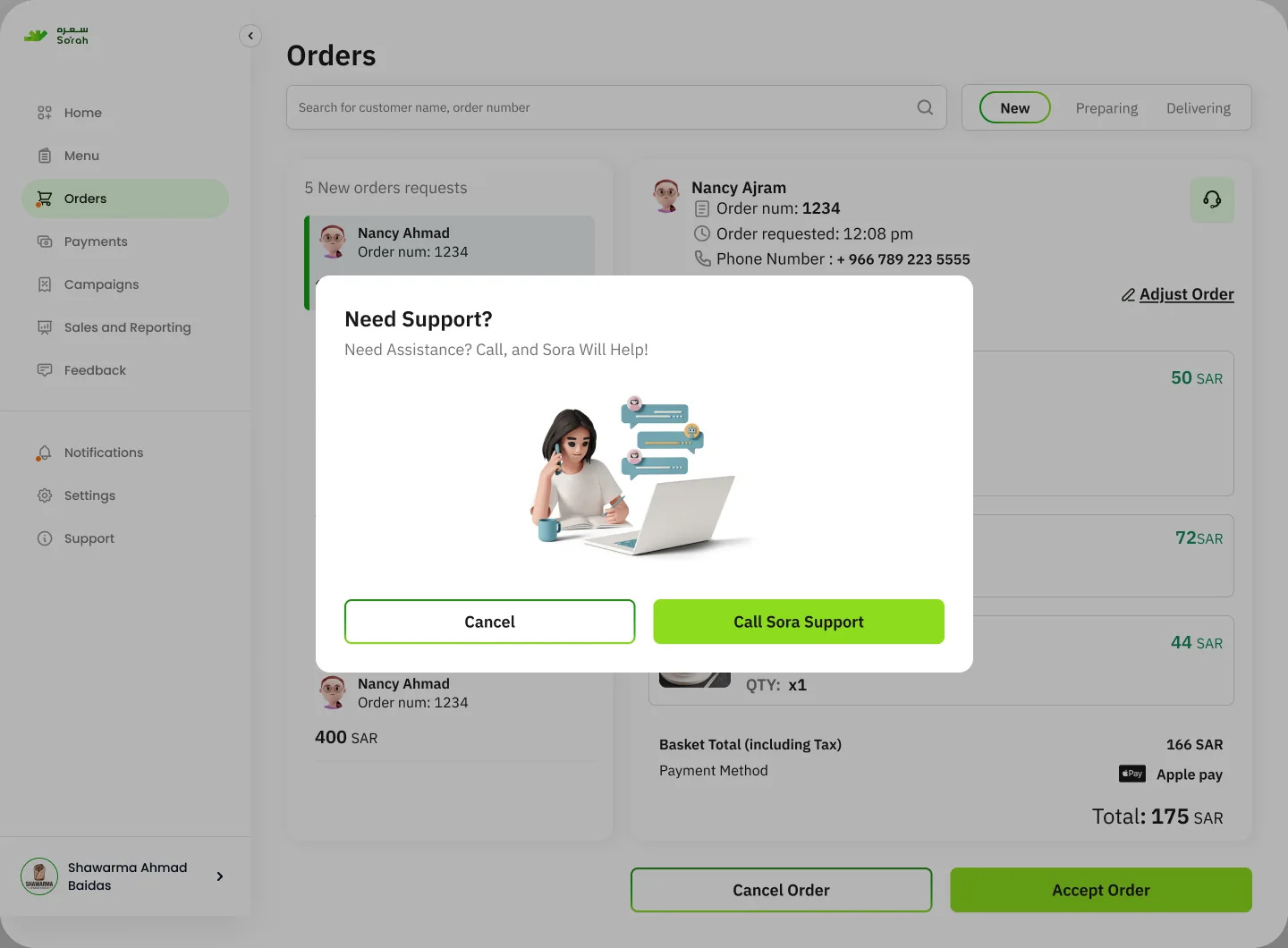
Archives · explored, then parked
Our solution, like So’rah, isn’t one-size-fits-all. Every interaction is optimized to simplify the complexity of nutrition and deliver results, pixel by pixel, goal by goal.